Archive for June, 2009

Hello everybody, today we released the V1.30 of ForeUI :-)

This version is really exciting, since it provides a brand new UI theme: Hand Drawing.  That means ForeUI can be used to create low fidelity wireframe now. What’s more, we can freely switch the fidelity of wireframe in ForeUI.
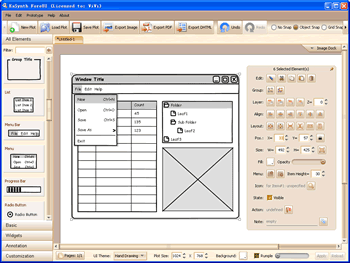
ForeUI with Hand Drawing UI Theme

ForeUI with Hand Drawing UI Theme

Another new feature is the z-index input field, now we don’t have to guess the z value of element:
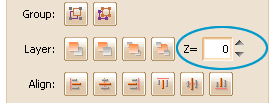
zindex

This version also contains some enhancements and bug fixings:

  • Enhancement:  Exporting the rumple effect to DHTML.
  • Enhancement:  Auto check new versions when startup.
  • Fixed Bug_0063:  The text label collapses spaces when simulating.
  • Fixed Bug_0064:  After dragging the opacity slider, too may opacity records in undo history.

We’d like to express our great thanks to  Cristian Prundeanu,  he gave us so many good suggestions on our support forum.  Some enhancement and bug fixings above are required by him.  Thank you Cristian Prundeanu, we are so happy to get so many useful feedback from you :-)

Also we want to thank Louis Marshall here, he gave us many suggestions via email, that help us a lot!  Thank you Louis Marshall, you are such a good guy :-)

ForeUI V1.27 is released today!

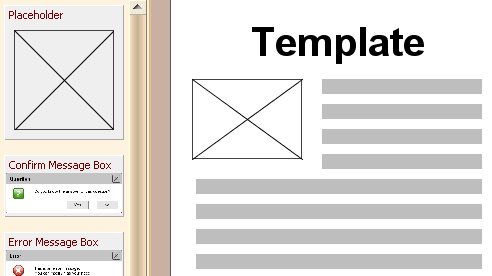
This version provides a new customized element named “Placeholder”.  Placeholder is  frequently used during UI prototyping, it can represent something that is not confirmed at this time, and help building the whole layout of the design.

placeholder

Also this version fixed some bugs:

Bug_0057: Text label is on incorrect location during simulation.

Bug_0058: The file “website_simulation.4ui” and “installer_simulation.4ui” can not be loaded at V1.25.

Bug_0059: Too many css files are used, it will meet problem when simulating in IE.

Bug_0061: The conditional loop is not really stopped when condition is not satisfied.

Bug_0062: The text label ignore the line break when simulating.

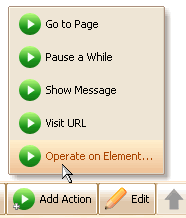
When we define the behavior of element, we can operate on selected element in the event handler.

operate_on_elem

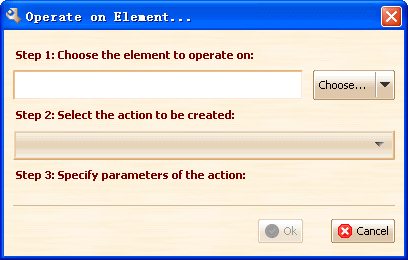
After we click the “Operate on Element…” menu item, we can create a new action that operate on selected element.

three_steps

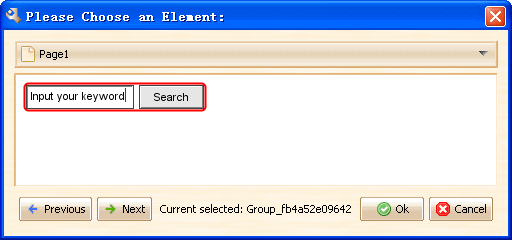
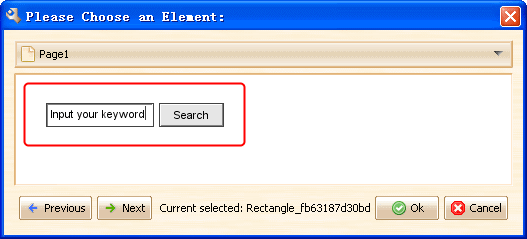
We can click the “Browse…” button to choose the element to be operated on, but we can only pick one element at a time.  What if we need to operate on multiple elements?  Should we repeat creating actions for those elements?  Can we work on multiple elements at a time?

The first solution in my mind is to us the grouping, as we all know that in ForeUI we can group multiple elements as a group, which will be regarded as one element.  So we can group multiple elements together and operate on the group.

select_group

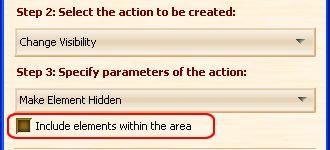
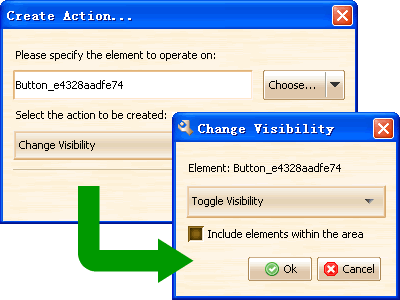
There is another workaround, some actions (such as change location, change visibility etc) provide the option to include other elements in the area.

include_others1

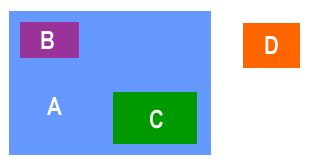
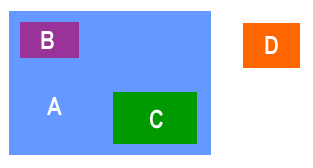
What does this option mean? let’s take a look at the figure below:

include_example1

We can see element B and C are located within the area of element A, while element D is not in the area.  When we create the action to hide element A and checked the “Include elements within the area” option, element A, B and C will all be hidden in simulation.  

What if we don’t have such kind of element like element A? There is an interesting skill: we can create a transparent element A (can be a rectangle element, without border, set its opacity to zero), and operate on the invisible element A.

invisible_elem

ForeUI V1.25 is released!  What’s new in this version? Here it is:

  • New Feature: Support loop in workflow simulation.
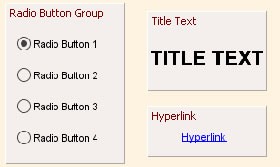
  • 3 New Customized Elements: Hyperlink, Title Text and Radio Button Group.
  • Enhancement: Simplify the action editing process.
  • Fixed Bug_0052: Create customized element with a group, the behavior on members can not work (lost target).
  • Fixed Bug_0054: Should show customized elements in “All Elements” category.
  • Fixed Bug_0055: Inserted property should replace the current selection in expression.
  • Fixed Bug_0056: Cancelling element selection should recover the previous selection.

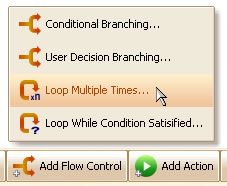
From now on, we can use loop in the workflow simulation.  This feature is very useful when designing an interactive prototype.   Now we have event handling, flow control (loop and branching) and actions, we can really make something that works on the web browser!

loop

Three new elements are added: Hyperlink, Title Text and Radio Button Group. 

new_elem

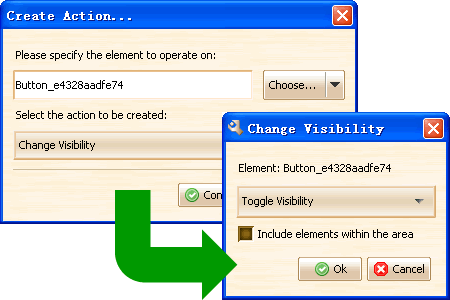
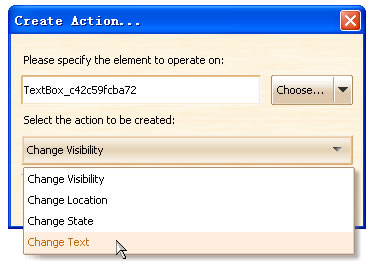
There is an important enhancement in this version.  In the previous version, when we create an action the operate on the element, we need to work on 2 popup windows, that’s really confusing:

old_version2

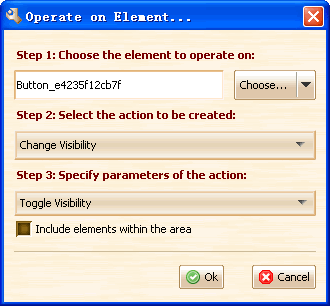
Now we have put them together (see figure below), much more clear, isn’t it?

new_version

Now the latest version can be downloaded here.  You can also launch the online demo.

This is a minor update version, providing 3 new features:

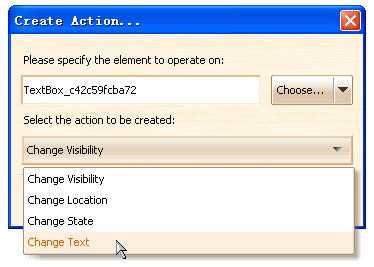
Dynamically change the text of label supported.
Now we can change the content of text label during the simulation.

set_text_action

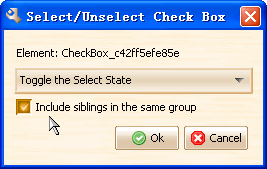
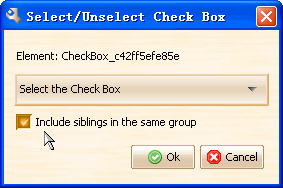
Allow setting select state of multiple check boxs within a group.
We can put several check boxes into a group, thus we can set their select state with one action.

select_check_box1

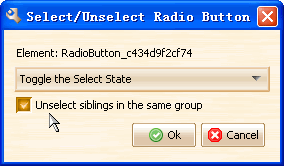
Allow unselecting sibling radio buttons within a group when selecting on of them.
We can also put several radio buttons into a group, thus we can uncheck other buttons when clicking on one button.

select_radio_button

We have also fixed four bugs in this version:
[Bug_0048] Double click customized element to add, some elements are moved to incorrect location.
[Bug_0049] Double click customized element to add, new elements should be selected.
[Bug_0050] The color of text label should be changed when it is disabled.
[Bug_0051] The action to change Text Edit Box value should support multiline editing.

In ForeUI, we can define the behavior of elements and run the simulation in web browser.  Here are some tips about running the simulation:

If you have defined multiple pages in a plot, you can use “Page Up” and “Page Down” key to switch the pages, even if you havn’t defined any behavior of elements.

If you are running ForeUI in Windows VISTA and your are not using an administrator account, you may meet a “Page Not Found” error in your web browser when launching the simulation.  That’s because ForeUI need the right to create a folder for storing DHTML files.  The workaround is to run ForeUI in administrator account, or to assign the right to ForeUI application.

If you meet any problem in using ForeUI, please feel free to contact us, we are making an FAQ page for ForeUI.

From now on, ForeUI has its online demo! That means you don’t have to download and install the package if you just want to take a tour;   You can just click the link to launch the demo and try all features of ForeUI.

Actually the online demo is a Java applet, usually your browser already has its running environment.  In case your browser does not support Java, you can try this link, it will auto-detect and install the Java environment for you.

The online demo has almost 100% the same features than the native installation, except the URL visiting:   In native installation, if ForeUI need to visit a URL, it will bring up a browser window and browse the URL in it;  In online demo, when ForeUI try to visit a URL, it will pop up a small window, showing the target URL and allow you to copy the URL to the clipboard, which can help you to paste it to your browser.

visit_url

Another difference between online demo and native installation is the prototype examples:  the native installation include some interesting examples and customzied elements;  the online demo has no example though.  We may provide a download site for the example resource latter.