Archive for November, 2009
Hi everyone, I’m here to proudly announce that ForeUI V1.80 is released today! This version bring us two new events and interactive ComboBox element, with some bugs fixed.
MouseOver and MouseOut Events
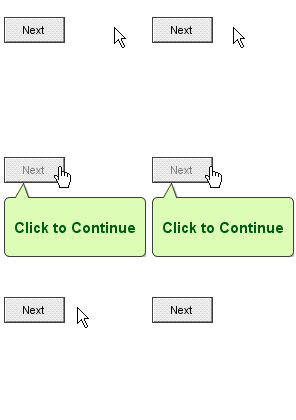
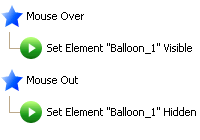
Now you can use these two new events in the behavior editor, they will be very useful to implement tooltip or element rollover effect. The MouseOver event will be fired when you move your mouse cursor over the element; and the MouseOut event will be fired when you move your mouse cursor out of the element’s area.
![]() |
![]() |
Interactive ComboBox
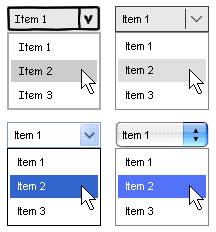
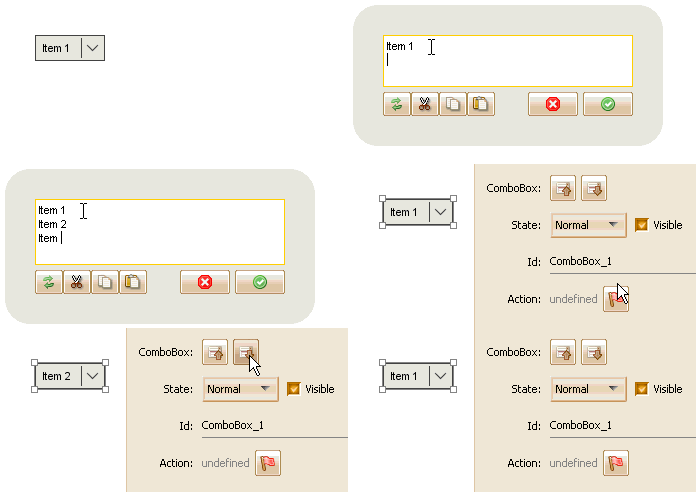
The ComboBox element is improved a lot in this update, it is no longer an image during the simulation, you can now interact with it. In order to support multiple items, ComboBox element can have multi-line content now, one row for one item, you can assign the default selected item in edit mode.
When you run simulation, you can click the ComboBox and then the drop down list will be poped up, the ComboBox will have different appearance according to currently used UI theme.
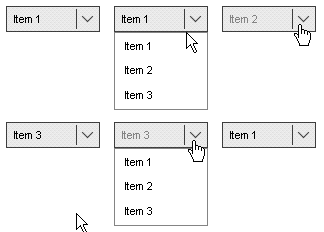
![]() |
![]() |
Other Enhancements
We changed the default state for newly created radio buttons and checkboxes, this is suggested by Ulrich and we really think the “Normal” default state is more reasonable.
Fixed Bugs:
Bug_0114: Can not add more cases after defining the switch branching. (Thanks Trevor Keegan for reporting)
Bug_0115: The “Element Clicked” event should also be fired when clicking on the Menu element. (Thanks Trevor Keegan again for reporting)
Bug_0116: Should not allow changing plot via Undo/Redo when editing element content.
Trial Duration Changed
BTW, the trial duration is changed to 15 days from this version, you can still contact us to extend the trial for another 30 days :-)
With ForeUI we can define actions for each element, thus we can create interactive prototype and run simulation in web browser. The behavior of element can be described as one or more event handlers, each handler is a flowchart that indicate the way to perform actions. Here are some tips to help defining a clear and effective flowchart.
Don’t Place Pause Action at the End
The Pause action will pause the current thread and wait for a while before executing the subsequent actions. In other words, Pause action can delay the subsequent actions. So if no action is defined after the Pause action, the Pause action will not really take effect, even if you place it in a loop, the Pause action will not pause anything in the next circle.
So placing the Pause action at the end is not a good idea, the table below show some good and bad cases:
| Good Cases | Bad Cases |
|---|---|
|
|
|
|
|
|
|
|
Use Only One Pause Action In the Loop
When you are defining animation, Pause action will be very useful. Sometimes we need to place the Pause action in a loop. But there is a limitation: if you place multiple Pause actions in one loop, the loop will not really work. So please use one Pause action in one loop. The table below shows a good case and a bad case:
| Good Case | Bad Case |
|---|---|
|
|
If you really need the behavior showed in the bad case, you can use this structure to workaround:
| Case to Workaround |
|---|
|
Thus you can perform one action in one circle, with one second interval.
Make Good Use of Copy and Paste
The behavior editor is improved a lot in V1.70 and provides copy and paste feature. You cut, copy or paste item in the behavior tree via the context menu. You can do these cross items, cross events, or even cross elements. That will a lot of time when you try to define similar behavior for multiple elements.
Of course you can also use drag and drop to move or copy items in the behavior tree.
Hello my friends, today we just released ForeUI V1.77! This version bring us a new Arrow Line element and some interesting features / enhancements.
Arrow Line
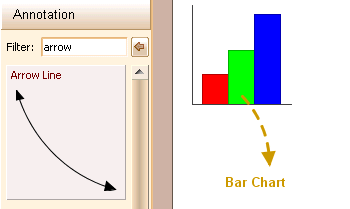
The Arrow Line element is in our TODO list for a long time, and today we finally make it. Arrow Line is very useful for making annotation on wireframe / mockups, so it is added to the “Annotation” category.
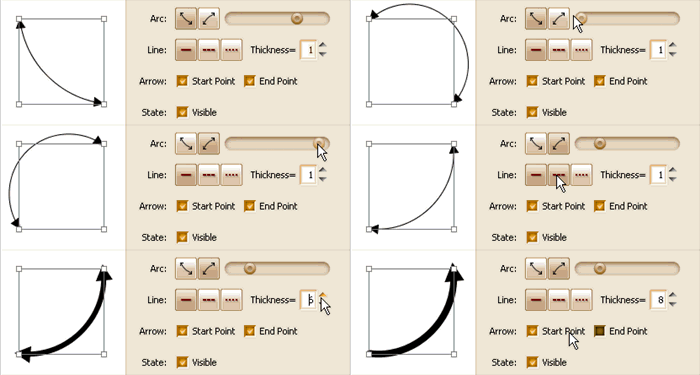
The new Arrow Line element provides many useful options for tweaking, you can change its color, thickness, shape and size etc. The animation below shows the details:
Alternate Row Color for Table/List/Tree
Now you can specify the alternate row color for table, list or tree element. Here is an animation to show how to do this:
This feature is requested by Michael Matti, thanks for the good idea!
Color Picker Enhancement: Clear Color
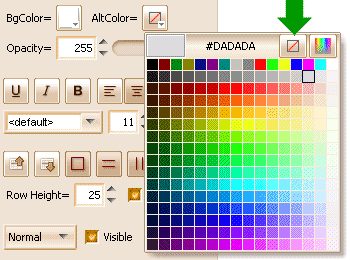
We’ve made a small enhancement of Color Picker, so it can clear the editing color now.
Just click the new button on the top-right corner can clear the current editing color. This feature is only available for “optional color”, for now only alternate row color belongs to this category. Once you clear the alternate row color, it’s actual value may vary according to the UI themes.
Fixed Bugs:
Bug_0111: Double-click the .4ui file to open ForeUI, sometimes it may hang. (Reported by Michael ScolaVisa, thanks!)
Bug_0112: The group element can not be smaller than 20×20, ignoring its content’s actual size.
Bug_0113: Press Page Up/Down to switch page should not scroll the plot as well. (Reported by Ulrich Bottger, thanks!)
What is Master Page?
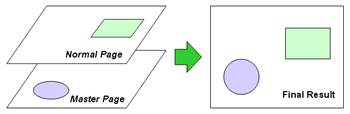
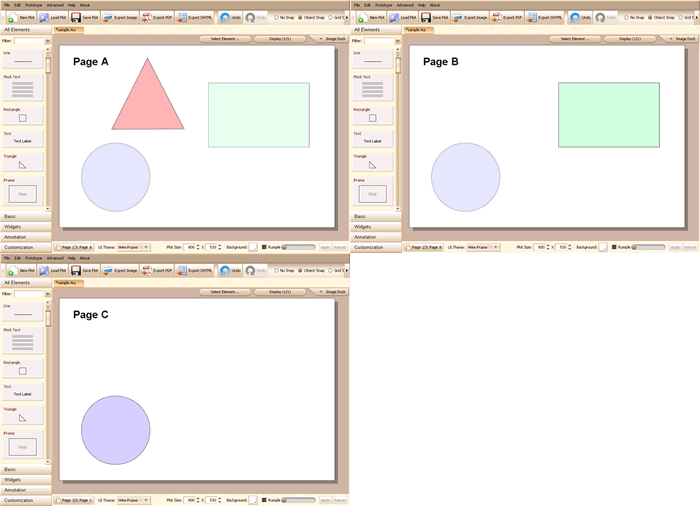
The master page feature is available since ForeUI V1.55, this is a very useful feature since it can simplify your prototype / wireframe a lot. Let me give a brief introduction for master page. Please take a look the the figure below, the master page works like a “background” layer, once you assign a master page to a normal page, the content on master page will be merged into the normal page. What’s more, a master page can be shared by multiple normal pages. That means you can put the common part of the prototype into the master page, thus it can be shared by several pages without copy and paste.
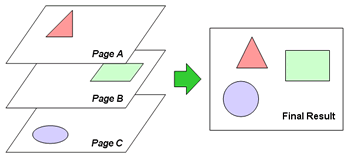
Although I used “Normal Page” and “Master Page” concepts to identify these two pages, they have no actual difference in ForeUI, they are just pages. In ForeUI, each page can be used as a master page, you can assign any page as the master page for your editing page. So you can assign page B as the master page for page A, and assign page C as the master page for page B, that will form a hierarchy structure like this:
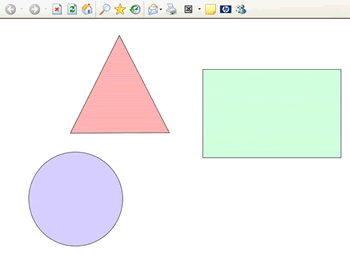
When we export page A or run the simulation of page A, we will see the final result: the contents in both page B and page C are all merged into page A. So you can imagine how helpful will this feature be.
Assign Master Page in ForeUI
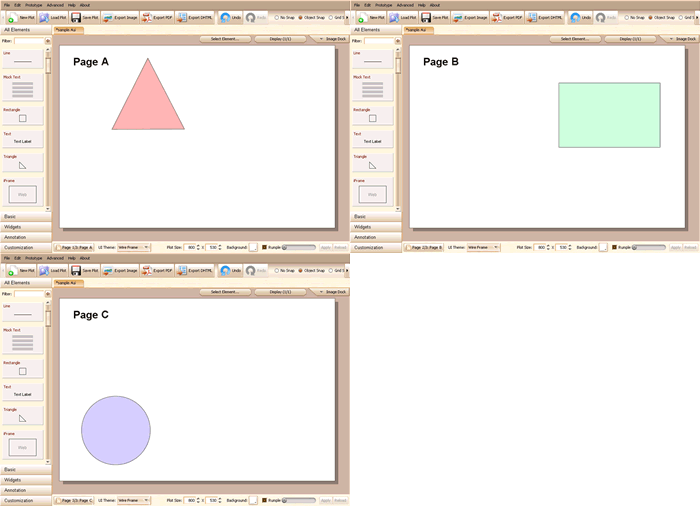
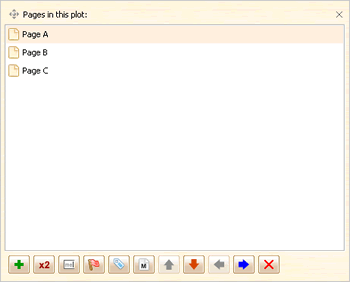
Now let’s see how to assign master page in ForeUI. First of all we need to create three pages, to make things simple I will use the page A, B, C mentioned above for demonstration. Here are the pages I created:
We can click the
button on the bottom left corner to open the page manage window, which looks like this:

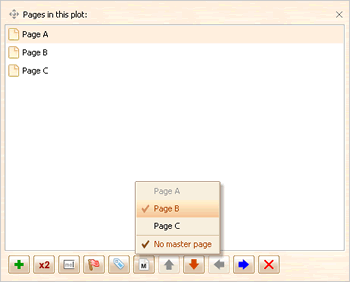
I will do it step by step, first I will select page A and click the
button to choose a master page for page A:
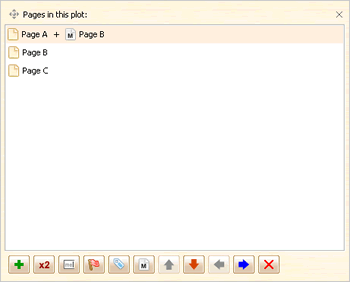
You can see the Page A item in popup menu is gray since you can not assign the page itself as its master page. I choose Page B, so page B becomes the master page of page A, you will see the page list is updated accordingly:
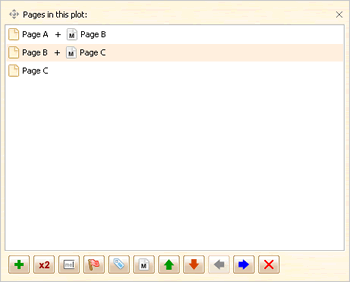
I will do the similar things for page B, assign the page C as the master page for page B, so finally we get:
That’s it, we’ve created the hierarchy structure. We can switch pages to see what’s happen. The figure below shows the effect:

The content from master page will be displayed in a semitransparent channel, it is just a mechanism for reminding. When export the page to image or html, all elements will be treated in the same way. The figure below shows the html simulation for page A:
Make Good Use of Master Page
Although these three elements are on different pages, they can interact with each other via predefined actions, so there is no drawback to move the common part of multiple pages to a shared master page, this will significantly simplify your prototype / wireframe.
A very typical use case for master page is the header and footer of web site, each page of the web site has the same header and footer. You don’t have to copy header and footer then paste them here and there, you can just put the footer and header content on a single page, then assign this page as the master page for all other pages, that’s it.
Hello everyone, today we just released ForeUI V1.75! This update includes some small enhancements, and a very useful tool: Element Selector.
Handy Element Selector
When we are prototyping a very big design, we may meet difficulty when trying to pick a small element that covered by a lot of elements. In V1.37 we provided a slider for hiding some elements that on top of the target elements, but when you are facing a huge number of elements on the plot, the slider may not be sufficient since you don’t know where to stop dragging the slider. In this new version, we provide a very useful tool to help picking elements in plot.
You can open this tool by clicking the
button above of the plot editing are. It will list all elements of the current page and group them by their types, like this:
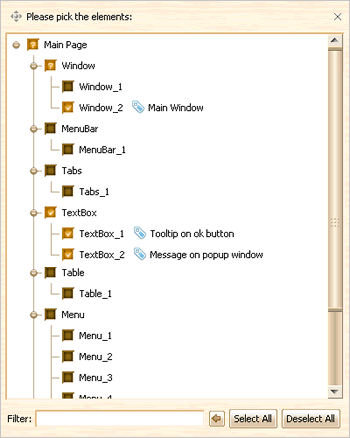
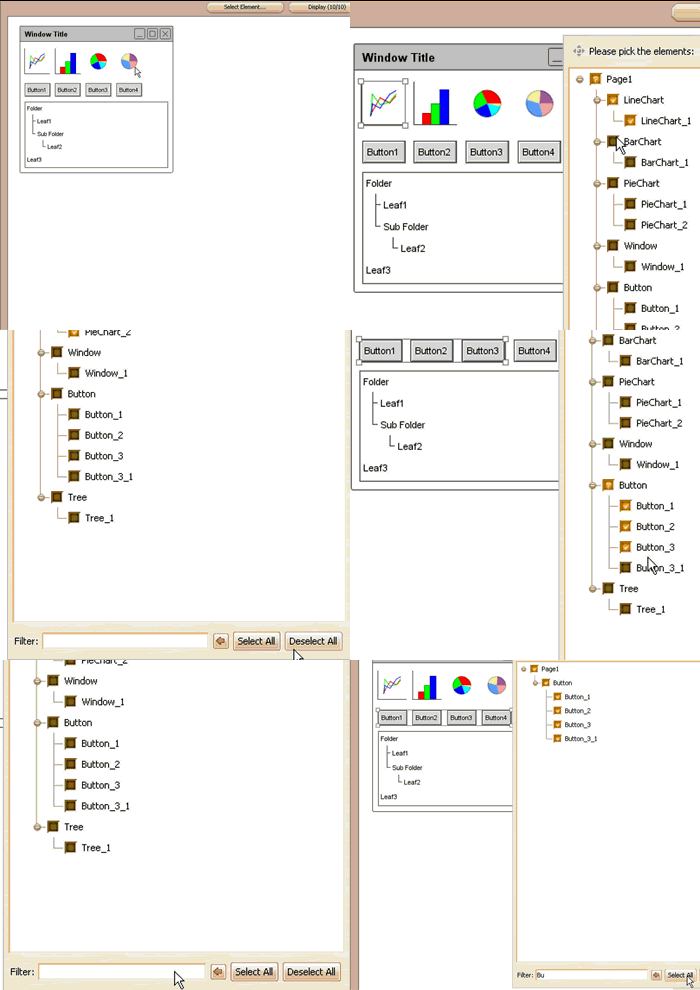
Each item has a check box so that you can check / uncheck it to select / deselect element. What’s more, you can filter the content of the tree structure by inputing a keyword at the bottom, the elements will be listed only when their ids or notes content the keyword (case insensitive), thus you can find your desired element very quickly. The animation below shows the way to work with the new element selector:
This feature is requested by Ulrich, thanks for suggesting this useful feature!
Change Image More Easily
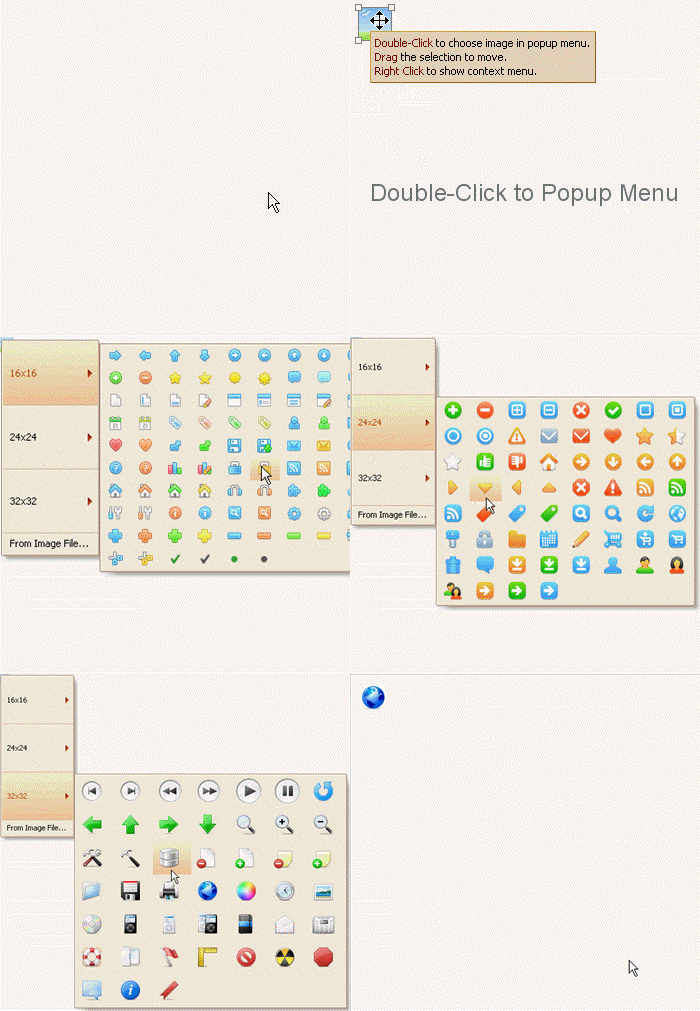
The image (or say image box) element is very frequently used, yet changing the image is not so easy in previous versions: you need to click the
button on the “Image” row in floating tool pane. Now we’ve made an improvement: just double-click the image element and the popup menu will show up and allow you to select the image from image dock, existed icon library or external files.
The animation below shows the details:
Some Enhancements:
- Save image export settings in configure file.
- Avoid launching multiple instances of application (Windows).
Fixed Bug:
- Bug_0110: Can not turn off Auto Resizing behavior for elements in group.
ForeUI is designed to be a desktop application and we can manipulate it with mouse only, however someone (including me) would like to make use of the keyboard with another hand, so I decide to make a table of all available hotkeys in ForeUI.
It took me about 20 minutes to create the first draft, here it is:
| Hotkey | Effective Region | Description | Comment |
|---|---|---|---|
| Ctrl + N | Main Window | Create a new ForeUI plot file and open it. | CMD + N in Mac |
| Ctrl + O | Main Window | Browse an existed ForeUI plot file to open. | CMD + O in Mac |
| Ctrl + S | Main Window | Save the current editing plot file. | CMD + S in Mac |
| Ctrl + W | Main Window | Launch slide show. | CMD + W in Mac |
| Ctrl + R | Main Window | Run simulation in your default web browser. | CMD + R in Mac |
| Ctrl + Z | Main Window | Undo the last editing action. | CMD + Z in Mac |
| Ctrl + Y | Main Window | Redo the last undo action. | CMD + Y in Mac |
| Ctrl + X | Main Window, Text Editor, Behavior Editor | Cut the selected content. | CMD + X in Mac |
| Ctrl + C | Main Window, Text Editor, Behavior Editor | Copy the selected content. | CMD + C in Mac |
| Ctrl + V | Main Window, Text Editor, Behavior Editor | Paste the selected content. | CMD + V in Mac |
| Delete | Main Window, Text Editor, Behavior Editor | Remove the selected content. | Backspace in Mac |
| Ctrl + D | Main Window | Open behavior editor for selected element or current page. | CMD + D in Mac |
| Ctrl + Right | Main Window | Select next element in plot. | CMD + Right in Mac |
| Ctrl + Left | Main Window | Select previous element in plot. | CMD + Left in Mac |
| Ctrl + A | Main Window | Select all elements in plot. | CMD + A in Mac |
| Page Down | Main Window, Simulation in Browser | Switch to next page. | Fn + Down in Mac |
| Page Up | Main Window, Simulation in Browser | Switch to previous page. | Fn + Up in Mac |
| Left, Right, Up, Down | Plot Editing Area | Move the selected elements in plot. | |
| Hold Shift + Single Click | Plot Editing Area | Add element to current selection. | |
| Hold Ctrl + Single Click | Plot Editing Area | Remove element from current selection. | |
| Hold Shift + Drag & Drop | Selection Border | Resize selected elements, with aspect ratio locked. | |
| Right Click | Plot Editing Area, Behavior Editor | Show context menu. | |
| Enter | All windows that have “ok” button | Emulate pressing the ok button. | |
| Escape | All windows that have “cancel” button | Emulate pressing the cancel button. |
I think I haven’t miss anthing but I may be wrong, so please help me to double check it, thanks in advance
Hi everybody, today I am grad to announce that ForeUI V1.72 is released! In this update we bring you:
Pie Chart
We’ve provided Line Chart in V1.65 and Bar Chart in V1.70, and we’ve got some great feedback. In V1.72 we add one more chart element: Pie Chart. Pie chart is very useful to represent the ratio data. As usual, you can click the “Shuffle” button to generate the random data for Pie Chart element:
Specify Default Font
The default font of text element (text box, button, list, table, tree etc.) is displayed as “<default>”, its actual font name will be “Arial” in most cases, but if you are using the hand drawing UI theme, the default font name will be “Comic Sans MS” instead.
Now you can specify the default font for all text elements, you can find the new option here:
In the majority of cases, you don’t need to change the default font. You may need this feature if you want to display Asian fonts (Chinese, Japanese etc), since the “Arial” and “Comic Sans MS” fonts can not display correctly in these languages.
Set Exact Opacity Value
This enhancement is requested by Michael Matti, now we have two controls to change the opacity of element, and they are linked together, you can use the slider to choose the approximate value, and use the stepper to set the exact value. This will be helpful if you want to make two or more elements have the same opacity value.

Auto Resizing On/Off
The “Auto Resizing” feature existed from the first version of ForeUI, it will be activated once you finish editing the text content of element. More specifically, it will enlarge the element to make sure the element can contain the new text content. It makes the tool more smart but in some cases it may be annoying, so here we have the option to turn on/off this feature:
Post-It Text Default Alignment
Different than the Balloon element, Post-It element is more likely to be used to contain a paragraph of text, so it is better to be left-aligned by default. This enhancement is suggested by Michael Matti.
Fixed Bugs:
Bug_0106: Post-It element has no content margins.
Bug_0107: Switch branching with numeric cases does not work in FF/Chrome.
Bug_0108: The default font of text element changed in simulation.
Bug_0109: Once select the font for element, can not change it back to <default> font.


![behavior_tree_context_menu[1] behavior_tree_context_menu[1]](http://www.foreui.com/blog/wp-content/uploads/2009/11/behavior_tree_context_menu1.gif)
![behavior_tree_dnd[1] behavior_tree_dnd[1]](http://www.foreui.com/blog/wp-content/uploads/2009/11/behavior_tree_dnd1.gif)