HAPPY NEW YEAR! Year 2009 is such an exciting year, we launched ForeUI product and achieved unbelievable success. Here I must on behalf of our company thank you again for your generous help, it is your ideas and creativity that push ForeUI become better and better. Can you imagine what will we do today? Yes we just released ForeUI V1.90! This version will be our last update in year 2009, and it will also be the last one of the V1.xx serial. As we’ve mentioned in our newsletter, ForeUI 2.0 is coming soon! No doubt the 2.0 will be very exciting but today’s leading role is still V1.90 🙂
V1.90 is a big update actually; it contains many things. Now let me show you the details.
Enhanced Table Element
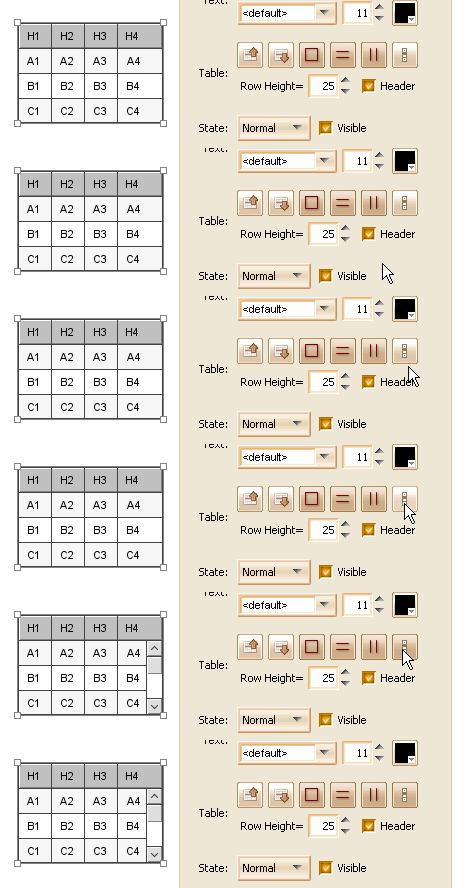
Table Scrolling
In previous versions the table element is just a static image during the simulation, but now things have been changed. Table element will be converted to real HTML table and support scrolling (if you enabled it).
The animation below shows how the scrollbar works in the simulation:
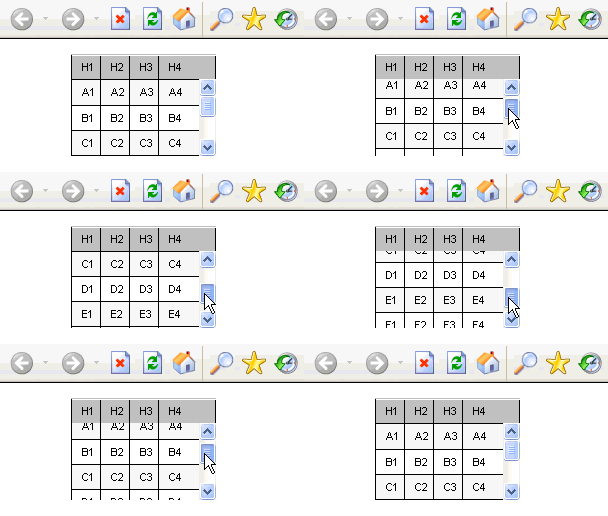
Table Cell Alignment
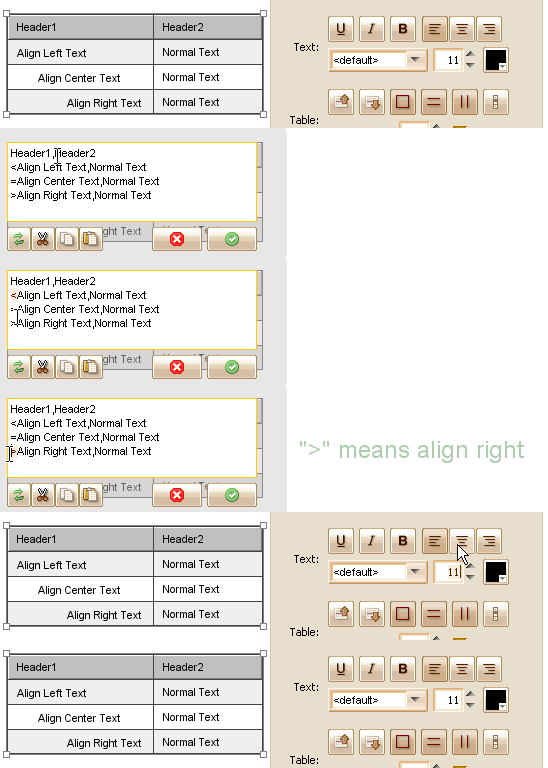
The table cell alignment can be configured independently, with the “<“, “=” and “>” prefix for the text. The text alignment of the whole table will be the default alignment for each cell. We can use “<“, “=” or “>” at the beginning of cell text to specify the alignment for the cell.
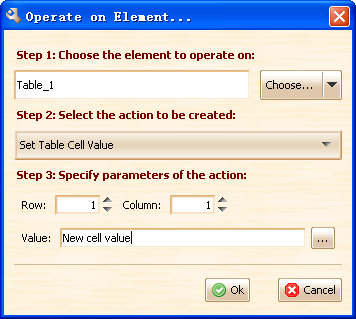
Set Cell Value Action
The enhanced table element supports the “Set Cell Value” action, this allow you to change the table cell value dynamically.
Input Action Target Element Id
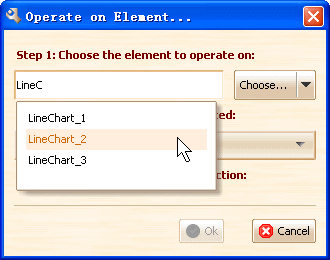
This feature is requested by Ulrich, it can save your time to find element in a big plot. Thanks for the good idea Ulrich 🙂 Now you can input the target element id for the action. We also provide an auto-complete assistent when you type the id, it will show all candidates in a popup list and you can pick one with mouse or keyboard.
Post Commands for DHTML Export
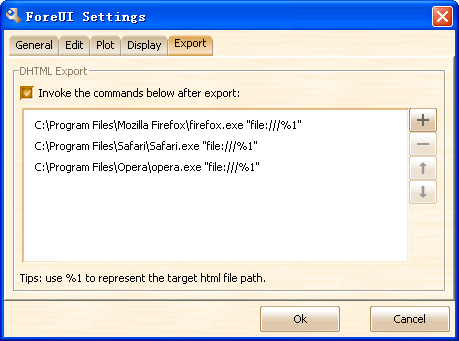
This feature is requested by Tim, we find it very useful when you want to do some successor task after the exporting, thanks Tim for the idea! Now you can input some commands in the “Export” tab of settings window, they will be invoked in turn after the DHTML is generated. Here is an example, we will run the simulation in FireFox, Opera and Safari when the DHTML is generated.
“Set Selected Index” Action
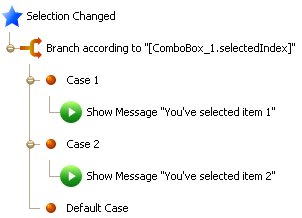
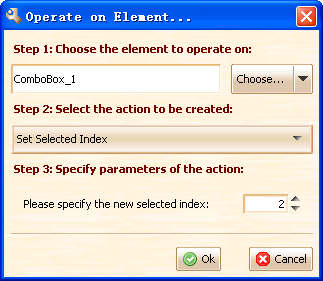
In order to provide more flexibility for behavior definition, we implemented a new “Set Selected Index” action. This action is supported by Table, List, Tree, Tabs and VerticalTabs elements. So you can change the selection of these elements in the simulation.
Other Enhancements
- Avoid selecting header of table element in edit mode.
- Press Backspace to delete element for non-Mac system.
Fixed Bugs
- Bug_0120: Main window may be hidden when click the action button on page management window.
- Bug_0122: Calendar element is not displayed correctly in FireFox.
- Bug_0123: Tabs/VertcialTabs/Tree/List/Table elements should invoke the handler for “Selection Changed” event when default selection is changed.
- Bug_0124: Sometimes Page Up/Down can not switch page in simulation after clicking some element.
- Bug_0125: List/Tree element without selected item is not painted correctly in simulation.