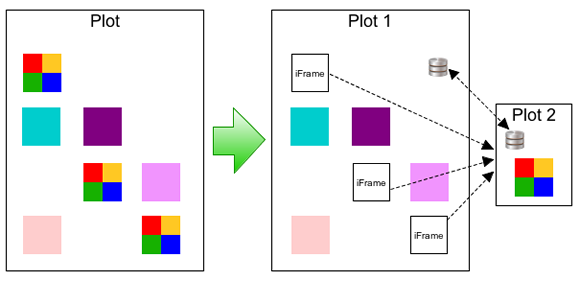
Did you know that?  ForeUI already supported adding live video (YouTube, Vimeo etc.) into plot from long time ago.  Perhaps more accurately still, it is supported from the ForeUI version released on Sep 28th, 2009: V1.60!  Thanks for the iFrame element available from that version, we can embed a web page into our plot.  Embedding live video is another use case for this element.

What you need to do is to add an iFrame element into your page, adjust its size and location, then specify the correct URL for live video.  How to find out the video URL?  It depends on the video provider.  If you want to add a video from Youtube, you can find the URL by clicking the “Share” button below the video player:

A panel will show up after you click the “Share” button, clicking the “Embed” button on it will show the code to embed video, the exact URL for live video is marked with red underline:

Please copy this URL to clipboard and paste it as the source URL of iFrame element.  A ready-to-go demo is finished now:

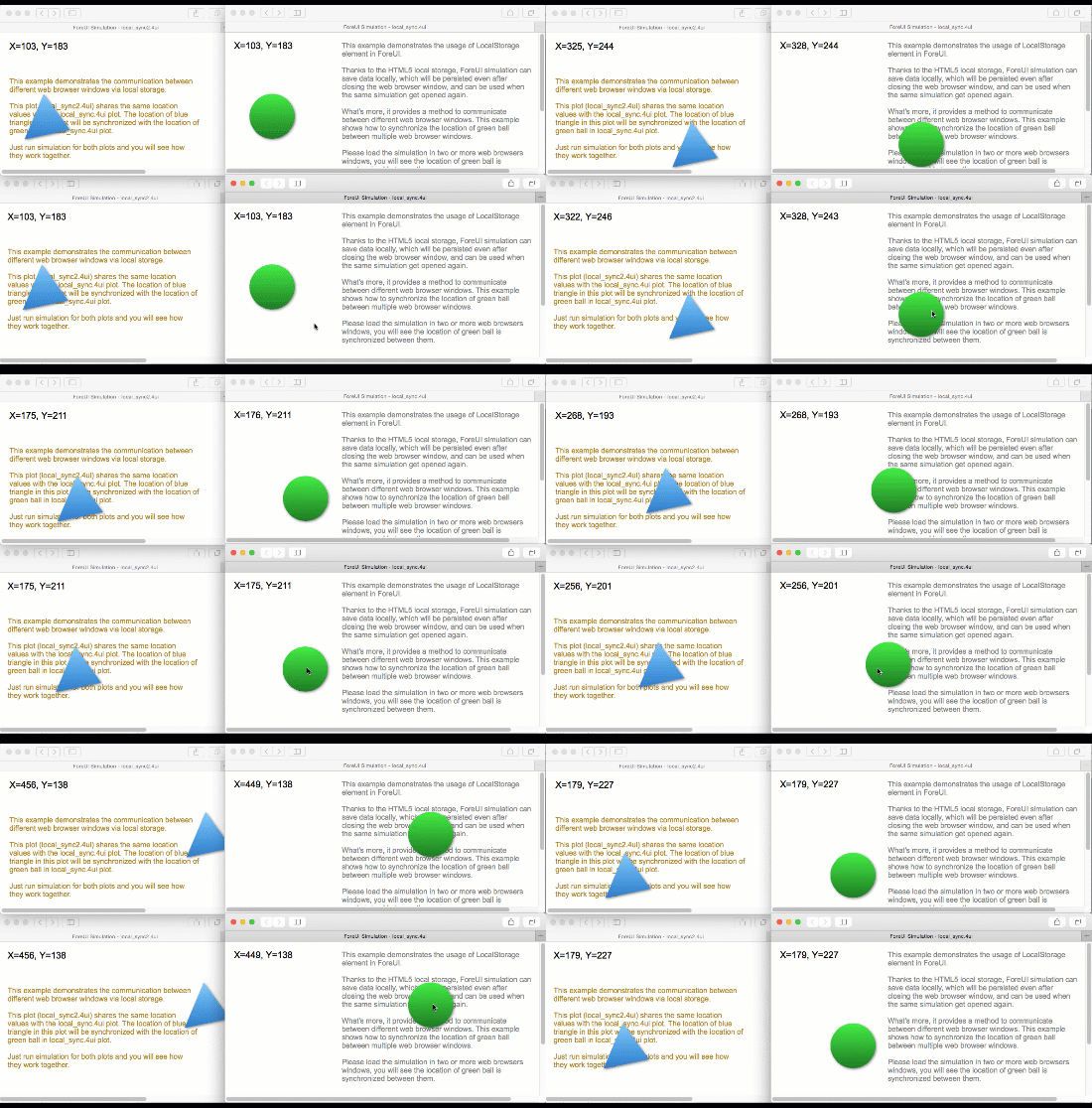
Now run the simulation in web browser and you will see how it works:

If you want to embed video from Vimeo, the steps are quite similar, and you just need to find out the correct URL.  You can click the “Share” button on top right corner of Vimeo video:

Then you will see a popup panel that includes the embed code on top right, the video URL is marked with red underline:

You can use this URL as the source URL of iFrame, and then you can see the result in simulation:

If you want to add live video from other providers, please check if they support embedding video as iframe.  If they do, you can use the same way to embed their videos into your ForeUI plot.


Web API, JSON and JSONP

Nowadays many web service providers offer some APIs to access their data, which significantly simplify the development of client application for these web services.  Usually the data format of the API will be XML, JSON or JSONP, which means you can request a URL on the Internet and then get a piece of XML or JSON data in the response, which contains the data you are interested in.

The difference between JSONP and JSON is that, JSONP will wrap the JSON data as a function call, while the function name is passed in from the request URL.  Calling JSONP API is usually used to workaround the “The Same Origin Policy” and get JSON data from different servers.  You can find a lot of information about these via Google.

“Get JSON Object” Action

From version 3.0, ForeUI supports a new action named “Get JSON Object”.  This new action allows the HTML simulation to get JSON object from remote server via JSONP API, and store the JSON data to an Object type property (data types are introduced in previous post).  That means ForeUI simulation can actually integrate with other web service via JSONP APIs, and we can even create some web apps with ForeUI!

When you add this action, you will be asked to provide some parameters, as shown below:

You will need to input the JSONP API here, and specify the name of property that will store the returned JSON data (as an object).  There is an optional parameter that allows you to specify the custom event to trigger, when there is any error happened.

Now I will provide a simple example to show how to use this action.

 Example: Location by IP

This is a simple, and working web app that allows you to get location information by giving the IP address.  This example demostrates the usage of the new “Get JSON Object” action and the object type property.  You will see how powerful ForeUI is :-)

Since I could not directly query databse in ForeUI, I need to find the JSONP API to the job.  Google always help but my favorite site for searching API is this one.  There are hundreds JSONP APIs listed on the site.  Please keep in mind that JSON API is different than JSONP API, if an API supports JSON format and does not support JSONP format, we just simply not able to use it in ForeUI.

After a few minutes work, I found my desired API: Prototype GeoIP API

I created the UI of web app very quickly with ForeUI.  I set the plot size to 320×356, which can be perfectly viewed on smart mobile phone.

Than I handle the “Element Clicked” event for the “Search” button, and invoke “Get JSON Object” action with the parameters below:

In the URL field, I inserted the value of input text box as the IP address.  The returned JSON data will be stored in property named “info”.  If any error happened, the custom event “IP_Error” will be triggered.  Remarks: do not use any spaces in the custom event’s name, please use underline instead.

The web app can almost work, if you input an IP address and click “Search” button in simulation, you can see the “info” property is filled with data (from properties view on toolbar).

The data stored in “info” property is a JSON object, using a JSON viewer can show its content with better format:

After figuring out how the data is organized, I defined some actions to update the result table, and show a message when error occurs:

That’s all, I exported the plot to HTML and uploaded to our website, you can try it below (an embedded iframe in this post), or you can try it in a separated window.

From V3, ForeUI supports 4 types of data in global properties: number, string, array and object. When you create or edit property in the “Custom Property” view, you will see them in a drop-down list.

You can also see this list when editing the “Set Global Property” action.

Number or Evaluable Data

The property in this type can have a number value like “1″, “2.2″ or “2012″, or have an evaluable value that can be evaluated as a number, such as “1+2″, “7*24″, “3-{tmp}” (while {tmp} is a number type property) etc.  So you can do arithmetic within this field actually.

String

The property in this type represents a text string.  You can insert any property within the text string, such as “Hello, {name}!” (while {name} is a string type property).  Please notice that when you input the value of string type property, you don’t need to quote the string with quote marks.  If you do need to place a quote mark in your string, please use an anti-slash (\) to escape it.

Array

Array type is new from V3, and you can use array type property to store a list of values.  Each member of the array can be any type of property, so defining multi-dimension array will be possible.  The format of the value will be [member1, member2, member3,...memberN].  Remarks: the array is one-based.  Say here is an array property {array}, the first member will be {array}[1].  Here are some array examples:

  • Simple Array:  [1, 2, 3]
  • Two-Dimension Array:  [[1,2,3],[4,5,6],[7,8,9]]
  • String Members:  ["Apple","Orange","Banana"]
  • Object Members:
     [\{"name":"John","age":18,"mobile":"+123456789"\},\{"name":"Rose","age":17,"mobile":"+987654321"\}]

Object

Object type is also available from V3, and you can use object type property to store some key-value pairs.  The key must be a string, while the value could be any type of peroperty.  The format of the value will be \{key1:value1,key2:value2,key3:value3…\}.  Please pay attention to the ant-slash before the brace, that means to escape the brace, otherwise the value will be regarded as the expression of a global property (e.g. {tmp}).  Here are some object examples:

  • Simple Object:  \{"name":"Mike","age":24,"mobile":"+135792468"\}
  • Nested Objects:   \{"user":\{"name":"Tom","age":28,"mobile":"+165832234"\},"info":\{"lastLogin":1340906019605,"message":"Hello World"\}\}

In order to access the value for given key within the object, you can use this:  {object}[key].  Below is an example that will show “Mike” when the page is loaded:

Please keep in mind that, the type of property can be changed during the simulation.  If you invoke “Set Global Property” action to set a predefined property, its data type will be overwritten.  For example: {tmp} was a number type property, now you call “Set Global Property” action on it and specify the type to “String”, then {tmp} will become a string time property after the action is executed.

That’s all for the data types.  Next time I will introduce the “Get JSON Object” action, which will make good use of the object type property.

ForeUI V3.00 Beta3 (internal version number 3.003) is released. This new version introduces a new “RadioButtonGroup” element, supports Russian language and allow customizing the toolbar in simulation.  There are also some enhancements and 15 bugs are fixed.

The newly added “RadioButtonGroup” can simplify  the way to simulate a group of radio buttons.  In previous versions, we need to define some actions for a group of radio buttons to make sure only one radio button can be selected at a time.  Now things become much easier by using the “RadioButtonGroup” element.

The RadioButtonGroup element works like a List element, except that it renders its items as radio buttons.  You can double click it to edit its content: one line one radio button.  Just like the List element, “Selection Changed” event will be triggered when different radio button is selected in simulation, and you can check which button is selected by checking the “selectIndex” or “selectText” property.

The toolbar in simulation becomes customizable now, you can show/hide any button in the toolbar from the “DHTML” tab in settings window.  This feature is very useful when you want to hide some facilities in the toolbar.  For example, the “Property” view is quite useful for prototype author, but it means nothing to the reviewers.  It will be better to hide the “Properties”  button before delivering the prototype to reviewers.

From this version, ForeUI supports Russian language (Thanks Konstantin for the translation).  The new language option can be found in the settings dialog (under “General” tab).  Remarks: if you are using Windows Vista/7, you will need to run ForeUI as system administrator to change the language, since it needs to change the content in the installation directory.

Some Enhancements

Some enhancements are made in this version:

  • Allow showing behavior for current selection only.
  • The splash screen is not always on top.
  • Do not hide loading text before all scripts are loaded by web browser.
  • Set cursor to “wait” during the loading of simulation.
  • When drop file into welcome page, have it opened automatically.

Fixed Bugs

15 bugs are fixed in this version:

  • Bug_0329: When loading plot created by V2, should not override the line height and pad values for MockText element.
  • Bug_0330: In simulation, menu will be hidden by clicking its item or outside area, but the “Element Hidden” event is not triggered.
  • Bug_0331: Set custom property value in simulation, should try to make data type casting when value and type are not matched.
  • Bug_0332: Switch branching case should be able to use empty string as case expression.
  • Bug_0333: Double clicking .4ui file to open ForeUI, the plot is not loaded in edit area.
  • Bug_0334: When copy/paste element, the target element ids of its action are not auto updated.
  • Bug_0335: Actions belong to elements that embedded in container are not included during copy/paste/pack custom element.
  • Bug_0336: After deleting behavior root in behavior editor, the edit/remove button should be disabled.
  • Bug_0337: Using backlash to escape brace for object type property definition, the backlash should be removed in simulation.
  • Bug_0338: Branch/Loop/Delay that directly followed by an action with error, may cause Javascript error in simulation.
  • Bug_0339: When running simulation IE9, GroupFrame element does not show its bottom border.
  • Bug_0340: The size of popup list for ComboBox with any empty row is incorrect.
  • Bug_0341: List element has mismatch between cell border and background, when running simulation in Chrome/Safari.
  • Bug_0342: The newly added tag filter button is not saved for next run.
  • Bug_0343: Behavior filter can not highlight keyword with special characters (space, quote mark etc.).

ForeUI V3.00 Beta2 (internal version number 3.002) is released now.  Besides fixing the bugs found in Beta, this version also offer a new “Hyperlink” element, and some other new features and enhancements.  The main reason why we still mark this new version with “bata” label is the lack of documentation and examples, which still need some time to work on.

In previous versions, we have to use the TextBox element to simulate a hyperlink (by adding underline style, handling “Mouse Over”, “Mouse Out” and “Element Clicked” events).  The new Hyperlink element offers a much easier way to simulate the hyperlink, just input the parameters for the link and ForeUI will do the job for us.

New Hyperlink Element

Another new feature is to allow setting the page alignment for simulation.  In V2.xx versions, the pages are always aligned left.  While in 3.00 beta, the pages are always aligned center.  Now we can spcify the alignment of  the content, which could be left, center or right.  The new option in settings window allows us to set the default page alignment for DHTML simulation, we can also change this alignment in the toolbar in simulation.

Specify Page Alignment for Simulation

Page Alignment

This version improves the diagnose engine of behavior editor, the errors that caused by parameter missing can be detected now.  Also the actions with error will be excluded in the simulation/export, so the chance to meet Javascript error in DHTML simulation will be much lower.

This version also have the bugs below fixed:

  • Bug_0321: Memory leak caused by behavior editor.
  • Bug_0322: Starting in Mac OS Lion may halt by thrown exception.
  • Bug_0323: Clicking memory usage link should go to “misc” panel in settings window.
  • Bug_0324: Calendar is not highlighted correctly if the selected day is the first day of the month.
  • Bug_0325: Embedded element can not be deleted directly.
  • Bug_0326: Changing image reference does not work correctly when image ids are discontinuous.
  • Bug_0327: Tool window has incorrect size if its content is too big.
  • Bug_0328: Simulation in Firefox or Safari: vertical scrollbar is not shown when page is higher than browser view.


As I remember, ForeUI V2.xx has entered the maintenance phase for about one year, which means we have not added new features into ForeUI for a year.  After so many effects, we finally released the ForeUI V3.0 beta!  Now you can download it here, and feel free to let us know your feedback.

It is recommended to use the new version to create a new project.  If you want to use it on previously created project, please backup your data beforehand.  Remarks: we are still working on the documentation and resource store.

The new version offers many new features and enhancements, my previous posts (this, this, this and this) just introduced a few of them.  So today I will continue my introduction of V3.0.

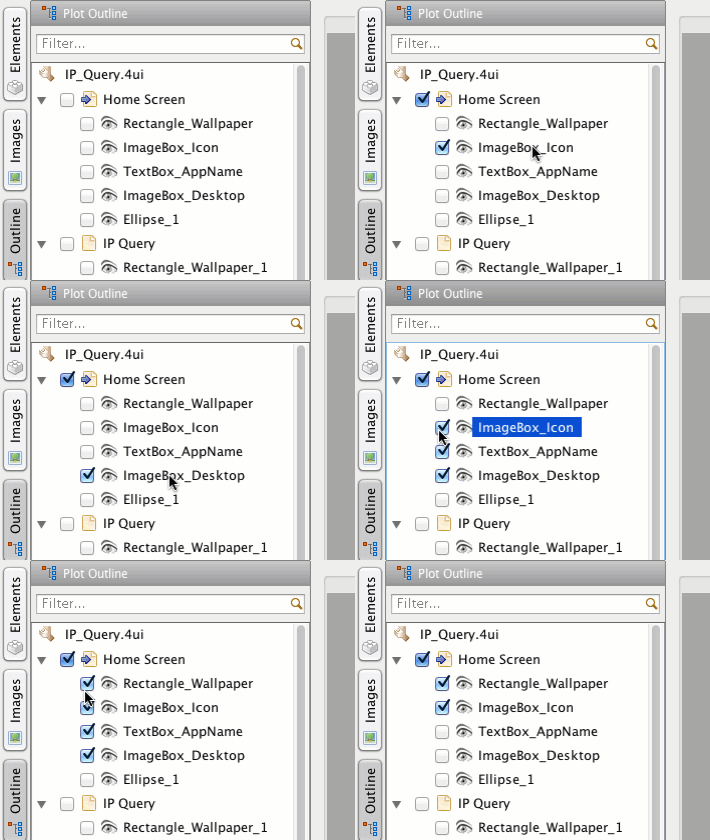
All tool windows are docked on left, right and bottom side, and you can use hotkey to show/hide them.  If you have ever used previous version of ForeUI, you will find that the GUI of V3.0 becomes even simpler.  For example, the element list on left side is simplified: all elements are listed in one panel and you can use tags to filter them.  There are many enhancements like that, and you will see.

From this version will will see a new element named “Polygon”, which allows you to create special shapes.  When you drag the element into editing area, or click the element and then click in the editing area, you will start drawing the polygon.

You can edit your polygon with “Draw Mode” (click to create new node) or “Edit Mode” (draw to move any node).  After clicking the “Finish” button you can then configure its background color and border color etc.

As you can see, with this flexible polygon element, you can define special shapes on your web/software UI.

Hope you will like V3.0 beta, and I will continue introducing new features next time.  If you are interested, here is a list of new features and enhancements in V3.0 beta.

As for the license, if you purchased your license for less than one year, you will be able to use your license key on V3.0.  Otherwise you will need to re-order the new license key for it (the price is raised now).

The coming ForeUI V3.0 will use a new GUI framework that allows moving, resizing and docking of any view.  That will definitely make better usage of the screen space.  In V2.xx, the action editor is not visible until you press Ctrl+D or explicitly show it by clicking menu or button somewhere.  From V3.0, the action editor becomes a dock-able view, which will be docked at the bottom of the GUI.  Thus you can review the behavior definition and GUI layout at the same time.

Different than V2.xx, this view is not showing the behavior for just one element or one page,  it will list the behavior for all elements and pages instead (when no filter is applied).  So it is possible to review all behavior definition in the plot in this view.  The cost is that you will need to specify the owner of the behavior first.  ForeUI will support two kinds of behavior owner in 3.0: element and page.  In the future, ForeUI will support more owner types, such as tag (elements that has the given tag).

On the top right corner of this view, you can input any keyword to filter the behavior list.  Only the definitions that contains the keyword will be shown, the keyword will be highlighted in the list as well.

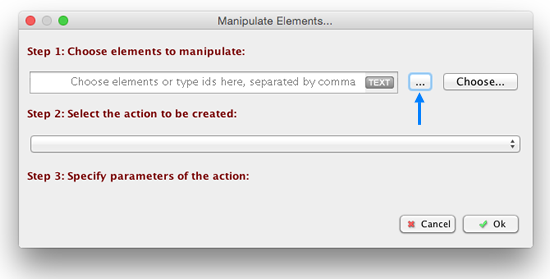
An important improvement is that you can defined the behavior for multiple elements at the same time, just choose multiple elements as the behavior owner:

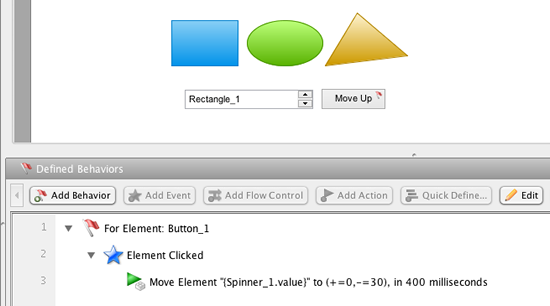
Thus they will have the same behavior when the same event is triggered on them.  Also you will be able to manipulate multiple elements at the same time, just choose them together as the target of the action.

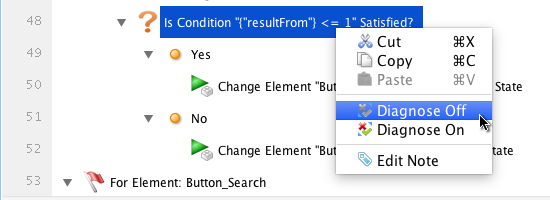
The new action editor even has the ability to detect errors.  If you defined an event handler for an element, and delete the element later, you will see the event handler will not take effect and is marked as deleted in the view.

This feature can reduce the errors on expression, and avoid (most of) the Javascript errors in simulation.

That’s the new generation of action editor, hope you will like it :-)

My previous two posts (this and this) are about the new features that will be available in V3.0.  Today I will continue the forecast.  I would like to introduce another exciting feature of ForeUI V3.0: toolbar in simulation.

From V3.0, your generated DHTML simulation can have an optional toolbar, which provides the page navigation and property viewing features.  When you launch the simulation in web browser, the toolbar looks like this:

The toolbar can be docked to any side of the screen.  You can choose the dock side on the right of the toolbar.  You can also pin/unpin the toolbar, the unpinned toolbar will be hidden automatically if you don’t manipulate on it for a while.

Clicking the “<” and “>” buttons can navigate to previous or next page in your prototype, you can do so by pressing PageUp and pageDown as well (this has been supported in V2.x).  The “Goto…” button can show you all the pages in your prototype and you can choose one to switch to:


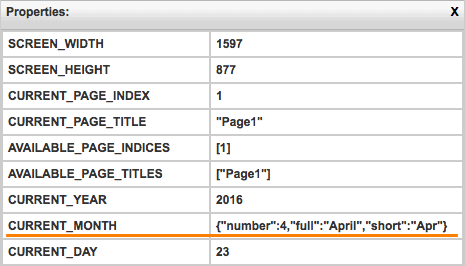
When you click the “Properties” button, the property view will be shown on the screen, and you can watch all properties (including system properties and custom properties) in your prototype:

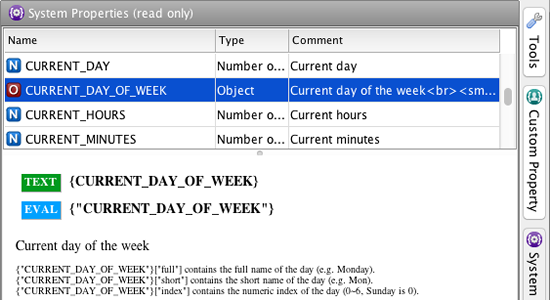
The properties in bold font is the system properties and those with normal font is the custom properties.  This property view is dynamic, the values in the view will be updated as soon as the property value is changed.

This is the toolbar you will see in the V3.0, and it is just a beginning, we will keep adding new features into the toolbar in the subsequent versions.


Last week I wrote a post to forecast the Reference element in V3.0.  Today I will introduce another important feature of coming new version:  gradient fill.  In ForeUI V3.0, gradient fill will be supported by all elements, in both editing and simulation.

When you try to change the background color for element, you will notice there is a new tab named “Linear Gradient”, which allows you to fill the background with gradient color.

In the “Linear Gradient” tab, you can add new color by clicking on the left area, or drag existed color out of the area to remove it.  Dragging the end points of the line can adjust the direction of the gradient fill.

The most interesting part is that you can save your gradient color for future usage: just input the name of the gradient color and click the save button.  The drop-down list on top allows you to load predefined gradient color.  If you don’t want to keep the gradient color, just click the button with trash icon to remove it.

The gradient color can be applied on any element.  Button, rectangle, placeholder, triangle, ellipse, polygon…  The gradient fill effect will be kept when you run the simulation, which is really cool.

That is gradient fill, wish you would like it :-)

First of all we have to say sorry to whom are waiting for V3.0.  We are still working hard as we were, the new version is delayed because of some technical problems and force majeure.  We appreciate your patience and understanding.  Today the new version is not available yet, but we are entering the last phase before the delivery, the 3.0 beta should be delivered in May.  I will write some blog posts to introduce the new, exciting features in coming V3.0.

PS: recently we were frequently asked if newly bought license can be used in 3.0, our answers are “Yes”, since the paid user will have one year free upgrade period, including major updates.  So if you buy ForeUI license now, your license key can be used in V3.0 when it is released.

There are many new features in 3.0, today we will introduce one of them: Reference Element.  This is a actually killer feature, it is not just cool, it is a real time saver for creating big prototype project.  The new element, just as its name implies, can “point to” another element and emulate its appearance and behavior, i.e. work as a reference of that element.

When you drag the Reference element from element list into the editing area, its default look may like this:

Default look for Reference Element

The big question marks in the center implies that it does not point to any element yet, you can specify the target element from the tool pane:

Sepcify Reference Target

After selecting the target element, it will simulate the original (target) element’s look.  For example, you select a TextBox as the original element, then you will see:

They look totally the same.  But wait, it is not a static clone, when you modify the content of the original element, the reference element will change its content accordingly.  What’s more, you can move or resize the reference element as you need, without affecting the original element!

As you can see, the reference element can override the location, size and visibility properties of the original element.  This will be extremely useful when you need to create a set of elements with same content but with different layout parameters.

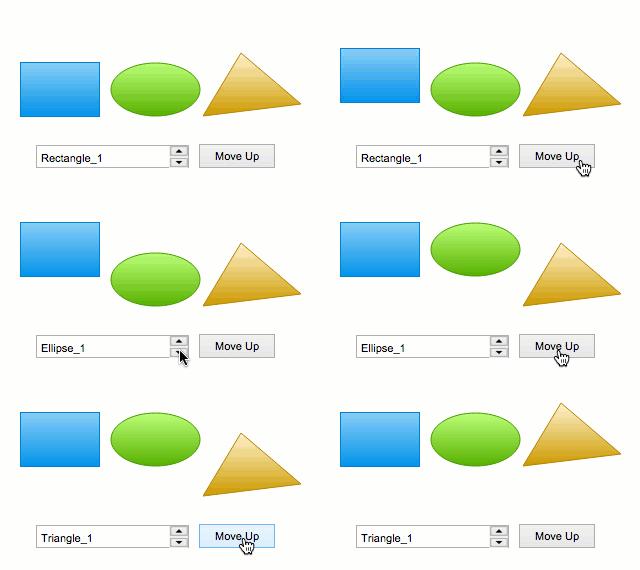
Reference element is not just a rendering trick, it actually emulate the behavior of the original element in the simulation, and keep synchronizing their state on the fly.  Please take a look at the example below:

Although the reference element can be interactive, you don’t need to define any event handler for it, since it will trigger event on the original element.  For example, when you click a reference button, it will trigger the “Element Clicked” event on the original button, thus the corresponding event handler will be invoked.

Reference element is also a good idea to share element between multiple pages.  Comparing with using master page, Reference element is much more flexible and will be suitable for more actual cases.  The Reference element can partially cover the requirements of “multi master page”, which are discussed here.

That’s Reference element, hope you will like it :-)