|
Simulate Drag and Drop |
  
|
|
Simulate Drag and Drop |
|
If you want to simulate a draggable window, that will be easy: just check the "Draggable" option for the Window element.

What if you need to simulate the drag and drop behavior on other elements? That's possible. All elements can become draggable, as long as you handle the mouse events properly.
Before going deep into the details, lets take a look at the analysis of drag and drop behavior (drag from point P1 and drop to point P2):
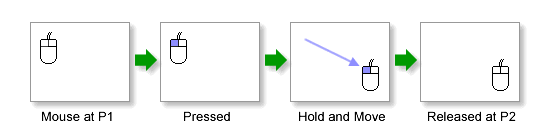
During this process, there will be three mouse event triggered orderly: Mouse Down, Mouse Move and Mouse Up. To simulate the drag and drop behavior, we need to handle these mouse events in this way:
| • | Mouse Down: |
| o | Mark the current status as "dragging". |
| o | Cache the current location P1 as the dragging start point |
| o | Cache the current location of the element that being dragged as the element origin |
| • | Mouse Move: |
| o | Calculate the current offset against the dragging start point (P1), and move the element base on its origin and the offset. |
| • | Mouse Up: |
| o | Mark the current status as "not dragging". |
In the community you can find a Draggable Container custom element. If you place it in your plot, it will become draggable in simulation. Here is an example.
Actually it is a TextBox element. It becomes draggable because it handle mouse events as above. Here is its behavior definition:
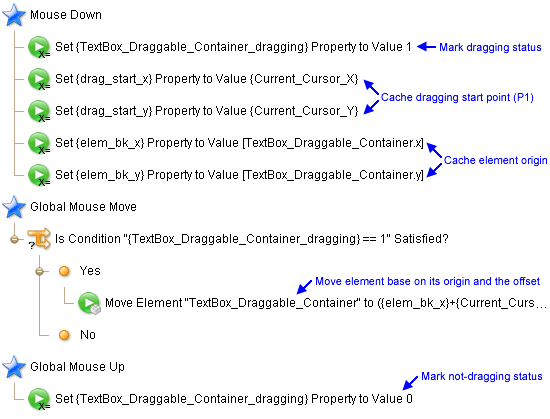
As you can see, the dragging status, dragging start point and element origin are stored in global properties. The most important action is the "Move Element" action, it move the TextBox to this new location:
NewX = ElementOriginX + CurrentCursorX - DraggingStartX
NewY = ElementOriginY + CurrentCursorY - DraggingStartY
One thing should be noticed is the three mouse events are not fully the same than those we mentioned before. The "Mouse Move" is replaced by "Global Mouse Move", and the "Mouse Up" is replaced by "Global Mouse Up". Let's make a comparison for these events:
Events |
Native Mouse Event |
Global Mouse Event |
Mouse Down |
Mouse is pressed on the element. |
Mouse is pressed anywhere. |
Mouse Move |
Mouse is move on the element. |
Mouse is moved anywhere. |
Mouse Up |
Mouse is released on the element. |
Mouse is released anywhere. |
From the table above you can see the "Mouse Move" and "Global Mouse Move" is quite similar, but the global event will be triggered no matter where the mouse cursor is. Here is an example to explain why use "Global Mouse Move" and "Global Mouse Up" instead of "Mouse Move" and "Mouse Up":
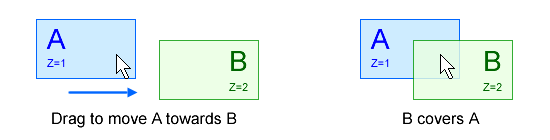
Let's say we have two elements: A and B. B has a higher z value. When we drag element A towards B, B will cover A since B has higher z value. When this situation happens, element A can not receive the "Mouse Move" and "Mouse Up" events since element B intercept them. To avoid this situation, we should use "Global Mouse Move" and "Global Mouse Up" events.
Once you understand the mechanism to simulate drag and drop, you will find that all elements can be dragged if you'd like to. Here is an example for drag and drop simulation, you can download its .4ui file from the community.