|
Table |
  
|
|
Table |
|
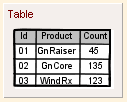
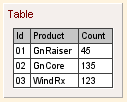
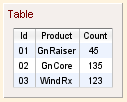
Table belongs to the "Widgets" category and it has different look in various UI themes.
UI Theme: |
Hand Drawing |
Wire Frame |
Windows XP |
MAC OS X |
Window 7 |
Legend |
|
|
|
|
|
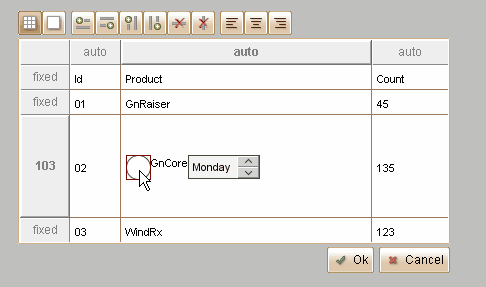
Table can store data with multiple rows and columns. To change the data of table, just double click the Table element. There are two editing modes, the default one is to edit data grid by grid. In this editing mode, you can insert/append/remove row or column, specify the text alignment for certain table cell, or adjust the row height or column width by dragging the header border.
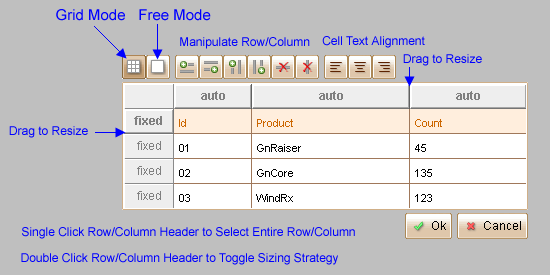
If you click the  button on left top corner, you will enter the second editing mode, which allows you to edit the data for the entire table. In this mode, each row in the editing area is for one row in the table. Data for different columns are separated with comma. If you need to use comma in table cell content, use '\' to escape it.
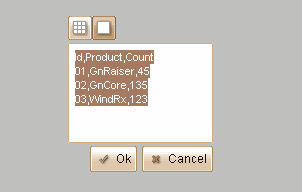
Table is a container element, and each cell of Table can serve as a container. You can embed elements into any cell of the table. The embedded element will be place at the left inside the cell, and you can drag to relocate it within the table cell.
An (invisible) Table element can be used as data repository. You can use properties to get data, and use actions to set/insert/append/delete data.
Element Specific Facilities
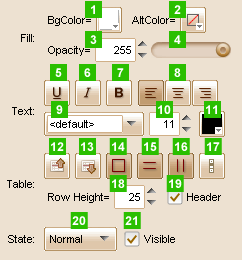
| 1. | Background color |
| 2. | Alternate row background color |
| 3. | Set fill opacity with number |
| 4. | Set fill opacity with slider |
| 5. | Underline text |
| 6. | Make text italic |
| 7. | Use bold text |
| 8. | Default text align (can be overrode by table cell's alignment) |
| 9. | Font of the text |
| 10. | Font size |
| 11. | Text color |
| 12. | Select previous row |
| 13. | Select next row |
| 14. | Table outer frame show / hide |
| 15. | Table horizontal lines show / hide |
| 16. | Table vertical lines show / hide |
| 17. | Scroll bar show / hide |
| 18. | Default row height ( in pixels, can be overrode by table cell's height ) |
| 19. | Show / hide table header |
| 20. | 21. Change state for the table |
Element Events
Element Clicked, Element Double-Clicked, Element Right-Clicked, Element Initialized, Element Hidden, Mouse Over, Mouse Out, Mouse Move, Mouse Down, Mouse Up, Global Mouse Move, Global Mouse Down, Global Mouse Up, Key Down, Key Up, Custom Event, Selection Changed
Element Actions
Change Visibility, Change Location, Change State, Set Selected Index, Set Table Cell Value, Append New Row to Table, Insert New Row to Table, Delete Row from Table
Element Properties
Id, X Coordinate, Y Coordinate, Width, Height, Visible, Note
Index of the Selected Table Row, Table Cell Values, Table Row Count