|
List |
  
|
|
List |
|
List belongs to the "Widgets" category and it has different look in various UI themes.
UI Theme: |
Hand Drawing |
Wire Frame |
Windows XP |
MAC OS X |
Window 7 |
Legend |
|
|
|
|
|
Double clicking the List element can change the content for each item.

List can accept image from image dock as its icon at each item. You can change its icon at any item from the floating tool pane, or directly drag the image into the list item.

Element Specific Facilities
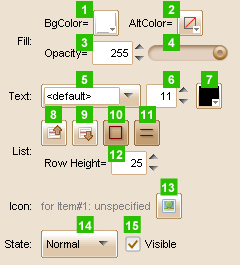
| 1. | Background color |
| 2. | Alternate row background color |
| 3. | Set fill opacity with input number |
| 4. | Set fill opacity with a slider |
| 5. | Font of the text |
| 6. | Text size ( in pixels ) |
| 7. | Text color |
| 8. | Select previous item |
| 9. | Select next item |
| 10. | Show / hide the border of the list |
| 11. | Show / hide the horizontal lines ( take effect on Wire Frame UI theme only ) |
| 12. | Set row height |
| 13. | Set icon for item |
| 14. | 15. Change state for the list |
Element Events
Element Clicked, Element Double-Clicked, Element Right-Clicked, Element Initialized, Element Hidden, Mouse Over, Mouse Out, Mouse Move, Mouse Down, Mouse Up, Global Mouse Move, Global Mouse Down, Global Mouse Up, Key Down, Key Up, Custom Event, Selection Changed
Element Actions
Change Visibility, Change Location, Change State, Set Selected Index
Element Properties
Id, X Coordinate, Y Coordinate, Width, Height, Visible, Note


