
Hello everyone, after one month holiday, we release V2.40 today. This release includes some important new features and enhancements to ease the container usage, 7 bug fixings are also included.
Easier Container Usage
We have implemented some useful new features for Group container, including:
- Allow moving member within element group.
- Allow adding member to existing element group.
- Allow extracting member from existing element group.
Also we have made two related enhancements:
- Auto grouping multi-selected elements before embedding into non-group container.
- Can embed element into nested container.
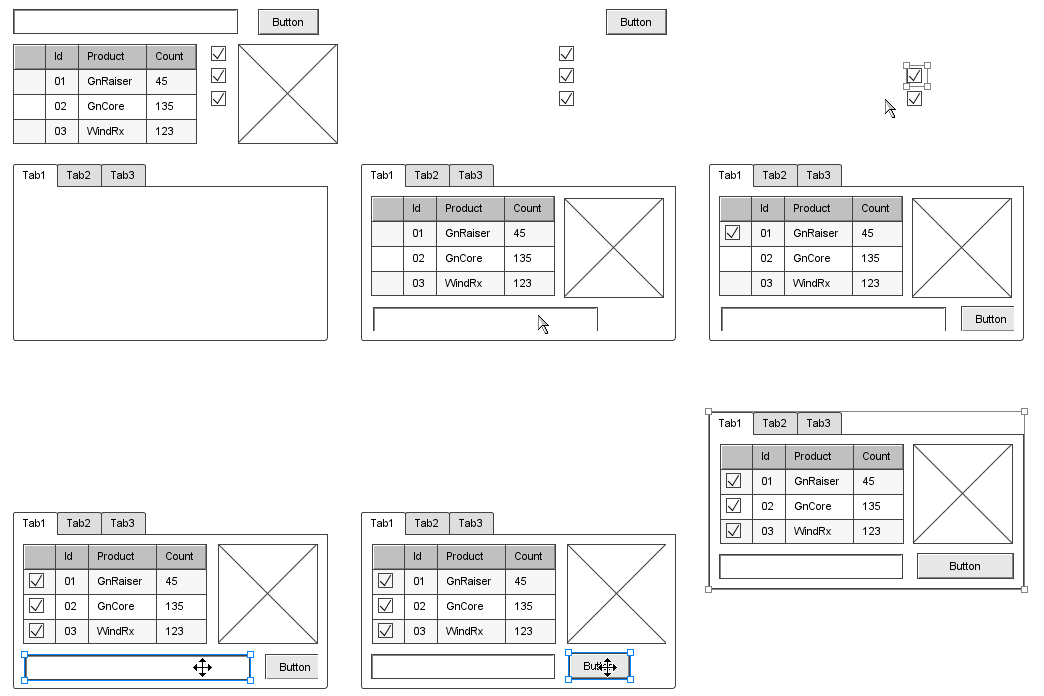
All these together provide a much better experience on container usage. You can embed multiple elements into container a time; you can embed more element into a container even it has embedded element already; you can extract any embedded element from its container; you can move or resize the embedded element… The animation below shows the example of container usage, which has become much more flexible.
Element Path Links
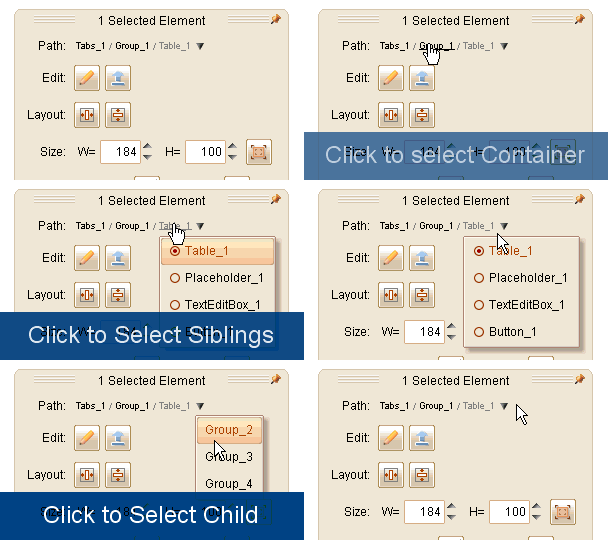
If you use container a lot in your plot, sometimes you may feel difficult to select a specific container or embedded element. From this version you can find the “Element Path Links” in the floating tool pane if you select an embedded element or a non-empty container element. These links can help you to quickly select the container, the sibling or child element for current selected element.
Fixed Bugs:
- Bug_0223: “Manage Categories” window (not pinned) will be hidden time by time if floating tool pane is translucent. (Thank Mark for reporting)
- Bug_0224: Multiple instances of custom element may have duplicated ids for embedded element.
- Bug_0225: Element is not valid after being embedded into ScrollableContainer, until moving the container a bit.
- Bug_0226: Copy a Tabs (or Vertical Tabs) element that contains image elements, then paste it to another plot, the images are not migrated to the plot.
- Bug_0227: Can not click to switch tab in edit area for Tabs or Vertical Tabs if they are embedded.
- Bug_0228: Element chooser: select an embedded element, then select a non-embedded element, the embedded element should be unselected.
- Bug_0229: Newly created, unsaved plot can not use the display controller to show/hide elements.
[…] ForeUI V2.40: Easier Container Usage & Element Path Links http://www.foreui.com/blog/?p=890 в Любими преди 2 минути edno23.com Начало контакти […]
I have some problems dealing with this new functionality. For example adding elements into a group is not as smooth as shown. I have to put an object over a group, then right click on the object once (sometimes a second time, until border changes its color to blue). Then I know it’s part of the group.
But then comes the issue with moving an object out of a Group. I thought moving an object out of the Group boundaries will take it away but it won’t. Stepper instances for example, after being part of a Group, and then moving them away from the Group boundaries make them disappear (not becoming part of the worksheet itself). And if I move around such a group after that (with moved away steppers), I see just the steppers text values moving around with the group.
I would like to see more detailed animations of new functionality, like different options. For example, for grouping elements in a Group, how they can be added from ‘Elements’, or from the worksheet itself, what happens if they move halfway over the Group boundaries, etc. etc. This might help not to write such long comments 🙂
Hi Dimitar, the easiest way to add element into group is directly drag an element with right mouse key pressed and drop it into the group’s area. “Right Key Drag and Drop” is the best way to add element to container (group is a kind of container).
As for removing element from the group, you need to select the element (has blue border highlighted), then press the “Extract” button on the floating tool pane. Then the element is removed from the group and become an independent element.
I will add something into the online document to explain this.
Thanks Xavier.
Didn’t know the right click drag and drop, it’s quite convenient.
As for the removing, yeah, the “Extract” button helps but what I meant it might be better when dragging a “grouped” object outside of the boundaries of the Group instance the object automatically to extract itself. Or maybe adding a right click menu option “Extract”.
And a request – Group Frame to support similar grouping functionality.
And thanks again for the great work, ForeUI is getting better and better!
Thanks for the frequent updates to ForeUI- it’s a good tool. My main wishes:
1. Fixes to switch branching so that strings can be used
2. The ability to play sound files
Hi David,
The switch branching already supports the strings. To use string cases, you need to make sure the expression is a string value and the case value type is set to “String”.
As for sound playing, we are investigating the solution, hope we could roll it out soon.