Although we have the online documents for ForeUI, many new users still wish to have more detailed tutorial.  Today I will create a (working) icon search engine with ForeUI, and I believe it will be very interesting!  I will give the icon search engine a cool name: ICOOGLE.  It is a combination of two words: “Icon” and “Google” :-)

Create the GUI

There will be two pages to create:

  1. Home page that allows user to input parameters for searching.
  2. Result page that display the current page of results.  This page can also accept user’s new search request.

Create a new plot, and set its page size to 1000×750, via the “Plot Settings…” button on the bottom right corner.  Now we are editing the first page (home page).

Drag a Text Box (text label) element from the element list on the left, and drop it into the page.  Double click the Text Box and change its content to “ICOOGLE”, set its font size to 65, use bold font, change text color to light blue, set elements size to 350×70, vertically and horizontally center the content, and move element to (325, 200).  This will be the logo, as shown below:

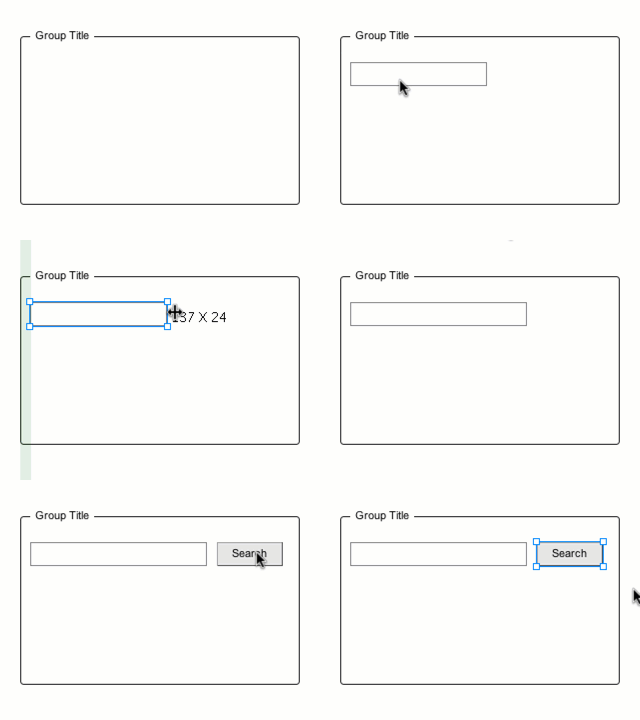
Drag another Text Box, a Text Edit Box and a Button element into the page, set their font size to 16, and set their height to 28, then align them in the same line, and put them in under the logo.  Here is how the home page looks like:

It will be better to rename the elements with some meaningful ids, so we can easily find them when defining the behavior.  Don’t forget to group the “Search Icon” label, the Text Edit Box and the “Search” button together, this will help us to reuse it in the second page (using Reference).  Open the outline view by clicking the “Outline” button on the left bar, you should see the outline like this:

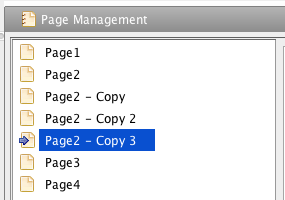
Click the  button at the bottom to open the page management view, set the current page title (on the right of the view) to “Home Page”. Click the  button to add a new page, and set its title to “Results”.  The newly created page will be selected automatically, so now we can edit its content.

Now we are goint to make use of the Reference element.  The Reference element is quite special: it can simulate the look and functionality of another element (which is called “reference target”), this can help us to reuse the previously defined elements to build new content.

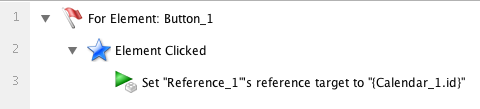
Drag a Refernce element from the element list into the result page, then click the  button in the tool pane to specify the reference target.  You will see this window:

Once you see this window, you can browse to any page to pick the element you want, as the reference target.  Here I will choose the logo text box, because I will also need the logo in the result page.

Adding another Reference element into the page, and set its target to the group we created before (so it will emulate the entire searching function block, fancy :D ).  Rearrange the position of these two references and adding a horizontal Line element to finish the header of the result page:

The results page will display 10 results per page, each result will be displayed in an iFrame element.  So we need to create 10 iFrame elements, set there default size to 64×64, and layout them in two rows (5 elements for each row).  You can make use of the alignment buttons () and layout buttons () in the tool pane to do it quickly.  Could not find these buttons? Try to select 2 or 3 elements together to show them :-)

Finally, we add two Button elements and one Text Box element to create the pagination bar on the bottom.

Now we have finished the GUI creation.  Although no behavior is defined yet, you can still run the simulation and browse the two pages via the navigation bar.


Prepare for the API Calling

As I said, I will create a working icon search engine with ForeUI.  I could achieve it thanks to the possibility that ForeUI could talk to the web service via JSONP API.

In this example, I will use the JSONP API provided by IconFinder.  You can find more details about this API here.  In order to use the API, you will need to sign up on IconFinder and get your own API key.  For testing purpose, you could temporarily use our API key (8b3d4114b9994b188cef5bcef9765444).

The API will return a JSON object like this:

That means we can get total results number (the “totalResults” field) and all icons’ information (the “icons” array field) from the JSON object, which can make ICOOGLE functional.

Define the Behavior

Behavior definition is very interesting, and could be challenging in some cases.  Since ForeUI allows you to define behavior in a simple and direct way, you don’t have to be a programmer.  However it will be better if you could think like a programmer, since that will help you to make neat design of the behavior.

First we need to define a custom property to store the current page.  We will include this property value in the URL for calling the API.  The custom property can be defined in the custom property view, which can be opened by clicking the “Custom Property” button in the right bar.

The main logic of this web application is to call the JSON API and retrieve the icons’ URLs.  We will need to call the API when:

  1. User click the “Search” button in the home page.
  2. User click the “Previous 10 Results” button in the results page.
  3. User click the “Next 10 Results” button in the results page.

We can let these three cases to share the same behavior, with different parameter (the page index and searching keyword).  So I defined a global custom event and put the searching logic into its handler.  This is very similar with the “function” concept in programing world:  Three buttons will call this “function” to do the searching.

As you can see I define this “Do_Searching” custom event for the home page.  Since it is a global event, it could be triggered in any place, so it is not a must to define it in the home page.  The most important part is the “Get JSON” action.  It should be defined like this:

The actual value of the URL is:

http://www.iconfinder.com/json/search/?q={TextEditBox_Keyword.value}&c=10&p={startPage}&min=1&max=64&api_key=8b3d4114b9994b188cef5bcef9765444 

You can see the keyword and the page index is included in the URL.  This API call will return a JSON object, which will be assigned to a custom property named “result”.  That means, when the Get JSON action finished, we will have a custom property (with “object” type) that includes all needed information for showing the result.

As you can see, there are two actions to trigger another two custom events (line 4 and line 5): Update_Result_List and Update_Pagination_Info.  It is not a must to define these two custom events, since you can put their logic into the Do_Search event handler.  The reason that I do so is to make the structure more clean.  The triggering of another custom event is quite similar with the “function call” in the programing world.  The final step is go to the results page, using the “Go to Page” action (line 6).

Here is how the “Update_Result_List” event handler looks like:

It is just getting the  icon URLs from the “result” object, and assign them to the iFrame elements (so you will see the icon in results page).  Keep in mind that arrays in ForeUI is 1-based, so first member in array is array[1].

And here is the “Update_Pagination_Info” event handler:

It makes use of the information in the “result” property and constructs the current paging information.

So far we have define the main logic of searching, but no one is using it yet!  We need to handle the “Element Clicked” event for all the three buttons and trigger the “Do_Search” custom event in the event handlers.

It is very easy to understand what they do: set the “startPage” property before doing the search, then we will get different results.

Now we have define the basic behavior of the web application.  You can run the simulation, input a keyword, press “search” button, and you will see the icons listed in the results page, you can even switch pages.

Could you believe that?  We have not defined any behavior for the search box in the results page, but it is working fine!  That is the magic of the Reference element :-)

Make It Even Better

ICOOGLE is working, but it is not good enough.  Here are some disadvantages:

  1. Can not press ENTER to start searching
  2. No limitation to the “Previous” and “Next” buttons (could go to unreasonable page that has no result at all)
  3. Icon border does not match the icon size
  4. The icon list should be cleared before listing the result, otherwise the icon from previous searching may be kept in the result page.

In order to start searching after pressing ENTER, you will need to handle the “Key Up” or “Key Down” event for the Text Edit Box element, and check the CURRENT_KEY_CODE system property value.  If the value is 13 (the code for ENTER key), we will execute the same logic with the “Search” button.  PS: all possible system properties are listed in the system property view, which can be opened by clicking the “System Property” button on the right bar.

Also I modified the “Update_Pagination_Info” event handler a little bit to enable/disable the “Previous” and “Next” buttons according to the current showing range: if the first listing result is less than or equals to 1, the “Previous” button will be disabled; if the last showing listing result is larger than or equals to the total number of results.  The “Next” button will be disabled.

The icon border is actually from the iFrame element, so we will need to resize the iFrame element according to the actual icon size (reserve 20 pixels as padding).

Simply set the source URL of the iFrame element to “about:blank” will clear its content.

There is a tricky thing: the JavaScript engine will meet error and stop the behavior if the icon information does not exist.  This could happen if you go to the last page of the searching result, ICOOGLE tries to fill all the 10 iFrame elements with icon information, but it could fail since the last page may contain less than 10 results.  To avoid this, the standard way is to check if the icon information exist before using it.  This will add many conditional branchings, which I don’t like so much.   Here I use a small trick: execute necessary tasks before trying to list the icon.  Specifically, I trigger the “Update_Pagination_Info” event before the “Update_Results_List” event since the later one may meet JavaScript error.

You can run the simulation directly from this link.  You can also download this example plot in ForeUI store.

Here is the final view of ICOOGLE:

This is a really long post.  I hope you enjoy it :-)

I’d like to use this tutorial to show what can be done with ForeUI, and attract more and more users to try the advanced features in ForeUI.

PS: ForeUI is still a prototyping tool, although it could be used to create the frontend of real web application.  You can just use the basic features to create fast prototyes of your web site or software.  If you wish to get higher fidelity of the simulation or even use it in production, ForeUI is ready for that.

Element Tooltip

The newly released V3.2 introduced a very useful feature, which allows you to set the tooltip for any element.  It is a real tooltip: once the it is set, it will take effect automatically in the simulation.  You don’t need to simulate the tooltip by yourself anymore.

Here is how it will look like in the simulation:

If the tooltip is not set (empty), the element will not have tooltip in simulation, just like it did in the previous versions.

Selected/Unselected Event for Checkbox/Radio Button

Since this version, you don’t need to check the checkbox/radio button state in a conditional branching anymore, just handle the “Element Selected” or “Element Unselected” events for checkbox/radio button, and you will get notified when the element selection state is changed.

New Action to Change Button Text

Now you can use the new “Set Button Text” action to change the text on the button.  That means you can have some dynamic button in your prototype.

Change Element Order

If you create some elements with the same Z value, the only thing that decides how to overlap them is the element order.  The element with smaller order index will be rendered earlier.  Now you can change element’s order in the outline view: just select the element and click the “move up” or “move down” button at the bottom, you will see the overlap order is changed accordingly.

Hotkey to Group/Ungroup Elements

Now you can press Ctrl+G to group the selected elements, and press Ctrl+Shift+G to ungroup the group you selected.  If you are using Mac OS X, the hotkey should be Command+G/Command+Shift+G.

There are More

There are more enhancements in this version.  Please read the update history for more details.

Dear ForeUI customers, if your license key is older than one year, you can now renew your license with 50% discount (based on the price after applying the volume discount) :-)

Here is the URL that will give you the details and instructions:

http://www.foreui.com/misc/renew_license.htm

Remarks: to ForeUI V1, V2 customers who have purchased license key for ForeUI V3 with full price, you are eligible to get FREE license key that will cover the software upgrade for another year.  Please write to license@foreui.com with both of your license keys (one for V3, the other for older version), and we will process your case manually.  Thank you.

Since ForeUI V3.0, there is an “HTML5″ tab in the settings window, and we can make some configurations for the HTML5 generation.  As shown in the figure below, there are two columns of configurations, and they have the same content.  The difference is that, the left column is for running HTML5 simulation (clicking the “Run Simulation” button in ForeUI), while the right column is for exporting HTML5 (clicking “Export HTML5″ button in ForeUI). Most of the settings in this window explain themselves, except the “Lazy Loading”.  This option is turned off by default, which means all contents in the simulation have to be loaded by the web browser before showing the first page.  You will see the loading page before the entire loading process is done.  If the simulation is big and complex, you may have to wait for a long time, which is bad.  In this case, you can consider turning this “Lazy Loading” option on.  It will try to display the first page as soon as possible, and keep loading the rest part of simulation in the background.  If you load the simulation with a web browser that has status bar shown, you will see the loading progress like this: The first page of simulation will appear when all its content are loaded.  You can review and interact with the page and wait for the loading of other pages.  If reviewing the first page takes some time, the next page may have been loaded in the background before you switch to that page.  Thus we reduce the actual loading time for the simulation.

The figure below explains how the “lazy loading” option works:

What if the target page is not completely loaded when we try to show it?  This can happen if “Lazy Loading” option is turned on.  In this case we will see the loading page appears again and we have to wait for the loading of that page.

If the loading time of your simulation is acceptable, you don’t need to turn on the lazy loading.  If you want to shorten the loading time, you can try to turn the “Lazy Loading” option on.

I should mention that using a faster web browser (e.g. Chrome) will be a good solution to accelerate the simulation loading.  However it may not be acceptable in some cases.

Dear all, Christmas and new year is coming.  I’d like to represent the entire ForeUI team to wish happiness to you: Merry Christmas and Happy New Year!

During the last 10 days before Christmas, we offer 20% discount to everyone who are interested in buying ForeUI license.  You can find more details here.

ForeUI Discount: 20% OFF

If you want to pay via RegNow, you can also use the “FOUI-I9FP-DISC” coupon to get the same discount.

We are going to enter the “lite” working mode.  We may work less at the end of the year, but it is still a working mode, so do not hesitate to contact us if you have question/suggestion/comment in mind :-)

ForeUI V3.10 is released on 5th December, 2012.  We have made a lot of optimization in this version and now it becomes much faster and smoother.  What’s more, there are some exciting new features and enhancements.

Import Plot

This feature is designed for team collaboration.  Your team members may work on different parts of the design as different plot files.  Finally you may wish to merge all plots together, and here is the way to go.  You can use the “Import Plot” feature to Import another plot into the current editing plot.  You can decide where to place the new pages (before or after current existing pages), and you can specify how to align the new pages with the old ones (if they have different size).

This feature is available in the “File” menu.  The “Import Plot…” item will be enabled if you have at least one plot opened for editing.

Background Image

From this version, you can specify the background image for the entire plot.  You will be able to find some new options after clicking the “Plot Settings…” button on bottom right corner.  The background image can be tiled horizontally, vertically or in both directions.  You can also configure how to align the background image with the page.

Compatible with Mountain Lion

We have a blog post about the issue when running ForeUI in Mountain Lion (Mac OS X 10.8).  Now the problem is solved.  ForeUI application is signed with Apple Developer ID certificate now, and you will get smooth experience when installing ForeUI into your Mountain Lion system.

What’s more, we have fixed some minor issues and made some improvements for Mac OS system.  We even created a new installer for it:

Input Element Id in Chooser

In previous versions.  When the element chooser is shown up, you will need to select element in the plot editing area.  If the target element is covered by other elements, or it is in another page, it will take you some time to find it out.  Now you have another choice: you can directly input the element’s id in the chooser.  You don’t have to remember all the IDs, just start typing the prefix of the id and you will see all candidates are listed, which is fancy :-)

When the content assistance pops up, you can use the UP and DOWN keys on keyboard to choose the one you want.  Of course you can use mouse to select the element from the list.

Other Changes

There are more content in this update.  You can check out this page to see other new features, enhancements and fixed bugs in this release.

ForeUI offers a powerful behavior engine, which allows you to define complex interaction in an elegant way for any GUI element on the screen.  Sometimes you may want to run multiple tasks parallelly, which is also called “multi-threading” in the software industry.  For example, assume we have a button, and we want to move it on right-down direction and enlarge it at the same time.  Is it possible to do so in ForeUI?  The answer is positive, that’s why I write this post :-)

First let’s create a single-thread version for the example, so you can later compare it with the multi-threading version.  The example only contains one button element (Button_1) and its behavior is defined as below:

There are two loops in the event handler for “Element Clicked” event: one for moving and one for resizing the button.  I designedly use different looping parameters for them, so we have good reason that not to merge them into one loop.  Since it is a single-thread version, it can only do the moving and resizing in sequence, like this:

You can download the plot file for single thread example, or view its simulation here.

Now lets try to make the multi-threading.  The basic of the trick is that, the event triggering is not a blocking call.  That means, when you trigger two events in order, the second event will not wait for the execution of event handler for the first event.  As a non-blocking call, triggering an event takes almost no time, so the two events seems to be triggered at the same time, and their event handlers seems to be launched together.

So I changed the behavior for Button_1 as below.  I added two “Element_Clicked” events to Button_1 and they will do moving and resizing accordingly.  There are two warnings (highlighted with yellow) since we place the same event twice in one element.  We know what we are doing, so just ignore these warnings.

Since the two loops are placed in different event handlers, they will be launched at (almost) the same time, thus you will see they are executed parallelly:

You can download the plot file for multi-threading example, or view its simulation here.

If you’d like to place the behavior definition in custom event handler, you can modify the example like this:  (download this plot file)

If you don’t want to use global custom event, you can define it as the private event for Button_1, like this: (download this plot file)

The three examples above will work in the same way, you can choose the one you like when you want to do multi-threading in ForeUI.

Maybe you already know that ForeUI will convert the behavior to Javascript when exporting plot to HTML5.  If you search “Javascript Multithreading” on the Internet, you will learn that Javascript does not actually support multi-threading (at least for now).  So all multithreading in Javascript are tricks, they are just simulating the concurrent execution.  However, if you have ever tried to manually write some Javascript code to simulate the multi-threading, you will see how difficult it will be and how easy to make mistake somewhere.  You will realize that ForeUI saves you a lot of time on achieving this ;-)

The official release of ForeUI V3.0 is delivered today.  Comparing with the previous releases, this version is more focus on the reliability and usability.  However, there is still an exciting new feature in this version, which is called “integration task” that can easily integrate ForeUI with other tools.

You may already know that you can invoke ForeUI via command line to generate image or HTML5 simulation.  However, have you considered to use other tools to process the file(s) generated by ForeUI?  The integration task is designed for that purpose.  In the settings window, you will see a new tab named “Integration”, which allows you to manage the integration tasks.

You can click the “Add Task…” button to add a new integration task.  Here you can specify the parameters for the task.

If you unselect the “Task is Enabled” option, the new task will be created but not take effect immediately, until you enable it later.

If you select the “Blocking Subsequent Tasks” option, the new task will block the workflow until the command is finished.  This is useful when you want to execute a serial of tasks in order.

You will need to specify the condition that trigger the task.  So far ForeUI supports these conditions:

  • Before Saving Plot
  • After Saving Plot
  • Before Export HTML5
  • After Export HTML5

You can input or browse the command to be executed, and you can use the variables below in the command:

  • %plot%: the file path of the current editing plot.
  • %file%: the path of the output file.  For Before/After Saving Plot task, it will be the path of plot file to save; For Before/After Export HTML5 task, it will be the path of generated HTML file.
  • %dir%: the path of the output directory.  For Before/After Saving Plot task, it will be the path of directory to save plot file; For Before/After Export HTML5 task, it will be the path of directory that store the generated HTML files.

By making use of the integration task, you can invoke other tools to process the file generated by ForeUI.

Example:  Auto Commit Plot File to SVN Repository

Some customers have asked for the version control feature.  Now we can have it by integrating ForeUI with SVN.  If you are not familiar with the usage of SVN, you can find some tutorials via google.

Assume that you want to commit the plot file to SVN repository everytime after you save the plot.  First you should add your plot file into a project, and checkout your project to a local directory.  Then please open the plot with ForeUI and go to the “Integration” tab in settings window.  You can create an integration task like this:

That’s all, every time you save your plot, it will be committed to the SVN repository, so you will never lose your work, theoretically :-)

If the plot file is not added into your SVN project, the command above will do nothing.

Remarks: the integration task feature is available for registered user only.

Other Enhancements and Bug Fixings:

Please check out this page to see the complete list of enhancements and fixed bugs in this version.

We recently received some reports about not able to run ForeUI in Mac OS X 10.8 (Mountain Lion).  When double clicking ForeUI icon, system pop up a message like this:

ForeUI is blocked by Gatekeeper

After checking, we realize the downloaded file was correct, and the reason that ForeUI can not run is the lack of code signing (with Apple developer certificate).  It is a new feature of Mac OS X 10.8 (Mountain Lion), which is called “Gatekeeper”.  You can find more details about Gatekeeper from Apple’s web site.  In short, Gatekeeper just like an application firewall, and it will reject some application according to its security setting.

We believe the Gatekeeper will bring more security to user’s Mac, but it does bring us some trouble, since we don’t have the Apple developer certificate yet.  Before we could release a code signed version of ForeUI, please use the following workaround to run ForeUI: (temporarily) allow applications downloaded from “Anywhere” before running ForeUI.  The configuration can be made in the “Security & Privacy” panel, as shown below:

ForeUI 3.0 RC version is just released.  As the last version before V3.0 official release, this version tend to be stable and offer much better experience.  We don’t plan to add new feature in the official release of 3.0, instead we will include the completed document and have some bugs fixed.

We have made so many improvements in this version that I could not introduce them one by one.  A full list of new features, enhancements and bug fixings can be found here.  In this blog post, I would like to show you the most interesting part of this update.

ForeUI Store

From this version, ForeUI integrates with its new online resource store.  You can download new element, library or plot file from store window, or from the store web site.  You will be able to download new UI theme and ForeUI plugins from the same site in the future.

Clicking the category buttons on top can filter the items to be listed.  You can also search the item by tag via the search box on top right corner.  If you click the “Preview” button, the HTML 5 simulation of the item will be launched in your web browser, and you can see how it works.  Clicking on the “Download” button will download the item and deploy it (if needed).

The store is just online and there is not so much resource inside yet.  We will frequently add new resources into the store site.

Drag and Drop in Outline View

The outline view is significantly improved by supporting drag and drop elements directly.  This is an easy way to embed element into container, or move embedded element from one container to another.

When you drag an element and try to drop it into a container, the tool-tip will tell you if it is allowed.  So you will know what you can do and what you can’t, also you will know why.  This feature is extremely useful when you want to manage a lot of overlapped elements.

Other New Stuffs

There are many other new things in this version.  Don’t be surprised if you find something different than they used to be.  Ususally they are changed in a better way, but if you think they are not, please feel free to tell us.

If you are interested in what we exactly did in this version, please check out the update history page.